Editorial Notice: This article is for informational purposes only. Steps come from Google, Apple, and Cloudflare help pages and named tech outlets, checked in October 2026. Menu names vary by phone brand and software version, so your screen may differ slightly. Use the Settings search bar if a path does not match.
📅 Published: October 18, 2026
The Wi-Fi bars are full. The network name has a tick next to it. Yet your browser shows a blank page, WhatsApp will not send, and every app is stuck loading.
If you have a WiFi connected but no internet on phone problem, you are not alone, and the cause is rarely your phone alone. The fault can sit in four places: your phone, your router, your internet provider, or a sign-in page you have not seen yet.
This guide gives nine fixes for WiFi connected but no internet on phone problems, in a sensible order, from the quickest checks to the last resorts. It covers your router, DNS, captive portals, and your network settings, with exact steps for Android and iPhone.
Table of Contents
📋 Table of Contents
- Why a Phone Shows Wi-Fi but No Internet
- The 9 Fixes at a Glance
- Fix 1: Find Out Where the Problem Is
- Fix 2: Reset Your Phone’s Connection
- Fix 3: Restart Your Router the Right Way
- Fix 4: Sign In to a Captive Portal
- Fix 5: Forget the Network and Rejoin
- Fix 6: Turn Off VPN and Security Apps
- Fix 7: Check Your DNS Settings
- Fix 8: Check Router and Network-Specific Settings
- Fix 9: Reset Network Settings
- When to Call Your Internet Provider
- Conclusion
- FAQs
Why a Phone Shows Wi-Fi but No Internet {#why}
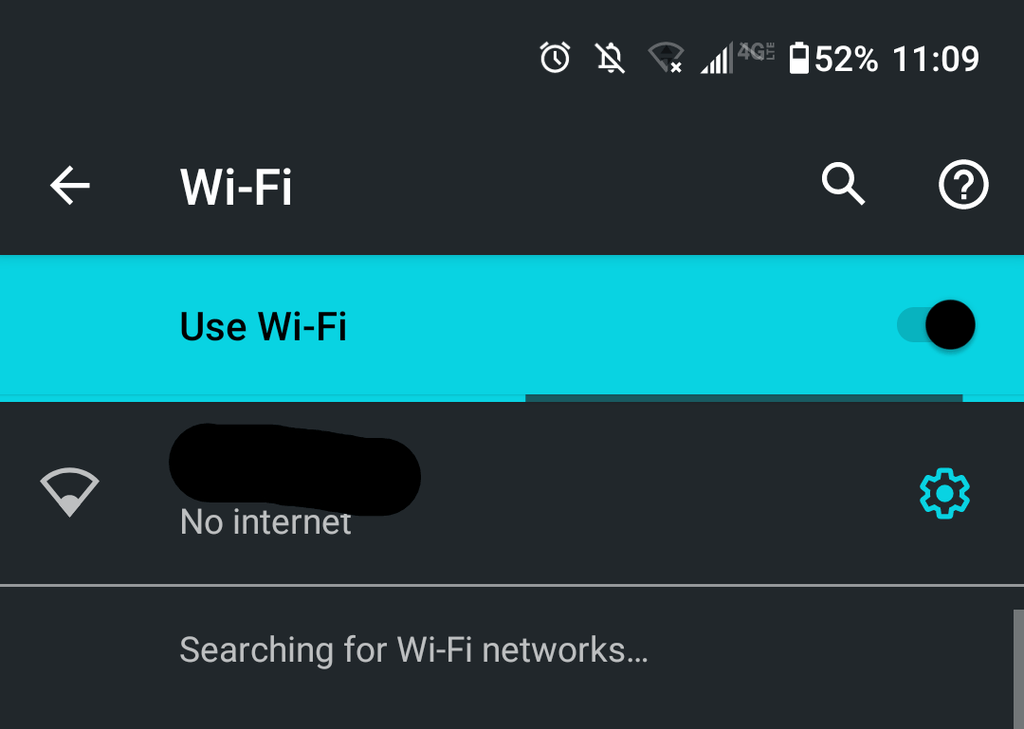
A Wi-Fi connection is really two links. The first links your phone to the router. The second links the router to your internet provider. Your phone can show a healthy first link while the second one is broken.
There is a third possibility. Public networks in hotels, airports, and cafes often use a captive portal. According to SpeedTestHQ, your phone connects to the network but the gateway withholds internet access until you sign in or accept terms.
So a WiFi connected but no internet on phone message can mean a dead router, a provider outage, a wrong DNS setting, or a login page you missed.
The 9 Fixes at a Glance {#at-a-glance}
Here is the full list of fixes for WiFi connected but no internet on phone, in the order to try them.
| # | Fix | What it targets |
|---|---|---|
| 1 | Find out where the problem is | Phone, router, or provider |
| 2 | Reset your phone’s connection | Temporary phone glitches |
| 3 | Restart your router | Router and modem faults |
| 4 | Sign in to a captive portal | Hotel, cafe, and public Wi-Fi |
| 5 | Forget the network and rejoin | Corrupted saved connection |
| 6 | Turn off VPN and security apps | Apps blocking traffic |
| 7 | Check your DNS settings | Pages that will not load |
| 8 | Check router and network settings | Router rules and band choice |
| 9 | Reset network settings | Deep configuration errors |
Fix 1: Find Out Where the Problem Is {#fix-1}
With a WiFi connected but no internet on phone problem, work out which part is broken before changing anything. The right fix depends on the answer.
Test another device. Apple advises testing whether other devices can join the network. If they also fail, Apple says there may be an outage and suggests contacting your internet service provider.
Test mobile data. Google’s Android help page suggests switching between Wi-Fi and mobile data. Turn Wi-Fi off, turn mobile data on, and see whether pages load.
If mobile data works and other devices also fail on Wi-Fi, the problem is in your router or connection. If only your phone fails, start with the phone-side fixes below.
Fix 2: Reset Your Phone’s Connection {#fix-2}
These quick resets are the cheapest things to try for a WiFi connected but no internet on phone problem.
- Restart your phone. Google lists this as the first step for Android internet problems.
- Toggle Wi-Fi. Turn Wi-Fi off, wait a few seconds, and turn it back on.
- Toggle airplane mode. Google says to turn airplane mode on, wait 10 seconds, then turn it off.
- iPhone only: Apple suggests making sure Airplane Mode is off and turning off Connectivity Assist if the connection still fails.
- Check the date and time. Online Tech Tips lists this fix for Android: go to Settings > System > Date & time and turn on network-provided time and time zone.
Then test a webpage. If it still fails, move on to the router.
Fix 3: Restart Your Router the Right Way {#fix-3}
Restarting the router is a standard step for a WiFi connected but no internet on phone problem, but the method matters.
Google’s Android help page says to unplug the router, wait 30 seconds, plug it back in, and wait 30 seconds for the lights to return. SpeedTestHQ gives more detail for different setups:
- Separate modem and router: Unplug the modem first, then the router. Wait about 30 seconds. Plug the modem in and give it about 60 seconds to connect. Then plug in the router.
- Combined modem and router: Unplug it, wait about 30 seconds, plug it back in, and allow 90 to 120 seconds.
- Check the lights: The internet (WAN) light should be solid, not blinking.
SpeedTestHQ also notes that a restart will not help during a provider outage. If problems return within hours of every restart, the router itself may be failing.
Fix 4: Sign In to a Captive Portal {#fix-4}
If you are on hotel, airport, cafe, or campus Wi-Fi, this is a likely cause. The network is connected but waiting for you to log in.
On Android:
- Look for a Sign in to Wi-Fi network notification and tap it.
- If you missed it, go to Settings > Network & Internet > Wi-Fi, tap the network, and choose Sign in. Online Tech Tips gives this path.
On any phone: SpeedTestHQ suggests opening a plain HTTP site such as neverssl.com. Secure HTTPS pages cannot be redirected cleanly, so a plain HTTP page usually triggers the login screen.
If the login page still does not appear, SpeedTestHQ recommends disconnecting your VPN and temporarily allowing pop-ups in your browser. Log in to the portal first, then reconnect the VPN.
💡 Also Read: [Online Earning 7 Methods]
Fix 5: Forget the Network and Rejoin {#fix-5}
If the problem persists, the saved connection may be at fault. Forgetting the network and rejoining gives your phone a fresh start. SpeedTestHQ also says the network may hold an old “authenticated” session, which forgetting can clear.
On Android: Online Tech Tips says to go to Settings > Network & Internet > Wi-Fi, long-press the network, and select Forget network. Then reconnect and enter the password.
On Samsung: Guiding Tech gives the path as Settings > Connections > Wi-Fi, then tap the gear icon next to the network and tap Forget.
Keep your Wi-Fi password ready before you do this. You will need to enter it again.
Fix 6: Turn Off VPN and Security Apps {#fix-6}
VPN and security apps can block traffic even when Wi-Fi looks healthy. Apple’s Wi-Fi help page lists this as a step: uninstall the VPN or security software, restart the device, and test the connection.
If removing it fixes the problem and you still need it, Apple says to contact the VPN manager or security provider.
You do not need to uninstall anything to test. Switch the VPN off first and check whether pages load. If they do, the VPN was the cause.
Fix 7: Check Your DNS Settings {#fix-7}
DNS turns website names into addresses. When DNS fails, your phone can be connected to the router and still load nothing. A failing DNS is one reason a phone can show a WiFi connected but no internet on phone message.
Android: Check Private DNS
Google’s help page says Private DNS is under Settings > Network & internet > Private DNS. The options are Off, Automatic, and Private DNS provider hostname. Google says it is on by default and recommends leaving it on.
On Samsung, Guiding Tech places it under Settings > Connections > More connection settings > Private DNS, and suggests choosing Automatic if the login page does not appear.
If you ever typed a custom hostname, switch to Automatic to test whether it is the problem.
Try a Different DNS Provider
Cloudflare’s Android guide gives the hostname one.one.one.one for Android 9 and later. Google’s guide gives dns.google. Enter either under Private DNS provider hostname, then tap Save.
iPhone: Set DNS Manually
- Open Settings > Wi-Fi and tap the info icon next to your network.
- Tap Configure DNS and change it to Manual.
- Tap Add Server and enter
8.8.8.8and8.8.4.4(Google) or1.1.1.1and1.0.0.1(Cloudflare). - Tap Save.
Google says choosing Automatic restores the network’s original DNS. It also advises writing down your current settings first.
Cloudflare warns that static DNS settings may block some captive-portal networks. If that happens, remove the addresses, connect, then add them back.
Fix 8: Check Router and Network-Specific Settings {#fix-8}
If other devices also show WiFi connected but no internet, look at the router. Apple’s help page and Online Tech Tips suggest these checks:
- Update the firmware. Apple says to update the router’s firmware and confirm it supports your device.
- Try the 5 GHz band. Apple says that if your router supports two bands, try 5 GHz instead of 2.4 GHz.
- Check MAC address filtering. Online Tech Tips says a router’s MAC filter may block your phone. Look in the router’s Security or Access Control section.
- Check your plan. Online Tech Tips says to confirm your data allowance has not run out.
iPhone only: Apple says that if a device cannot reach the internet after joining a network, you can try turning off Private Wi-Fi Address for that network. Go to Settings > Wi-Fi, tap the info icon, tap Private Wi-Fi Address, then tap Off. Apple advises installing the latest software updates first.
Fix 9: Reset Network Settings {#fix-9}
This is the last phone-side fix, because it erases saved connections. Apple says use it only if other fixes fail.
What it removes: Apple says it removes all Wi-Fi networks and passwords, cellular settings, and VPN and APN settings. Android Police adds that it also resets paired Bluetooth devices. It does not affect installed apps, photos, or files.
The paths:
- iPhone: Settings > General > Transfer or Reset iPhone > Reset > Reset Network Settings.
- Android (stock): Settings > System > Reset options > Reset Wi-Fi, mobile & Bluetooth.
- Samsung: Settings > General management > Reset > Reset network settings.
If a school or business manages your phone, Apple says to check with IT first. Save any Wi-Fi passwords you need before you start.
When to Call Your Internet Provider {#isp}
If your phone joins the network after a reset but there is still no internet, Apple says to contact your internet service provider. The same applies if every device fails.
Online Tech Tips lists one final router-side step: a factory reset. It restores default settings, including the login credentials, so use it last.
Contact your provider first if you suspect an outage, because no setting on your phone can fix one.
Conclusion: Fixing WiFi Connected but No Internet on Phone {#conclusion}
A WiFi connected but no internet on phone problem looks alarming, but there is a clear order to work through. Start by finding out whether the fault is your phone, your router, or your provider. Then try the quick resets, restart the router properly, and check for a captive portal.
If that fails, look at DNS and your VPN, then check the router’s settings. Reset your network settings only at the end.
Keep this list handy for the next time the bars look full and nothing loads.
💡 Also Read: [How To Grow Tiktok Account]
📖 About the Author
Waqar Ahmad is a tech and digital lifestyle writer with over 6 years of experience covering mobile apps, communication platforms, and internet infrastructure. He writes to make app updates and tech news understandable for everyday readers.
❓ Frequently Asked Questions
1. What causes WiFi connected but no internet on phone?
The phone is linked to the router, but the router may have no connection to your provider, DNS may be failing, or a captive portal may be waiting for you to sign in. Test another device and mobile data to find out which.
2. What is a captive portal?
SpeedTestHQ describes it as the login or acceptance screen used at hotels, airports, cafes, and campuses. The network connects, but internet access is held back until you sign in or accept terms.
3. How do I make the Wi-Fi login page appear?
On Android, tap the sign-in notification. Otherwise, open a plain HTTP site such as neverssl.com, turn off your VPN, and forget and rejoin the network if needed.
4. Will changing DNS fix the problem?
It can, if DNS is the cause. Try Android’s Private DNS set to Automatic, or set a different DNS provider. Google and Cloudflare publish steps for both phones.
5. Will resetting network settings delete my photos or apps?
No. Android Police says it does not affect installed apps, photos, videos, or files. It does erase saved Wi-Fi networks, paired Bluetooth devices, and VPN settings.
6. Why does Wi-Fi work on other devices but not my phone?
Then the fault is likely on the phone. Restart it, forget and rejoin the network, turn off your VPN, check DNS, and try the iPhone’s Private Wi-Fi Address setting if you use an iPhone.
7. When should I contact my internet provider?
When other devices also fail, when a router restart does not help, or when your phone still has no internet after a network reset.
Sources
- Fix internet connection problems on Android devices – Google Android Help
- If you can’t connect to Wi-Fi on your iPhone or iPad – Apple Support
- Use private Wi-Fi addresses on Apple devices – Apple Support
- Private DNS on Android – Google Android Help
- Android DNS setup – Cloudflare 1.1.1.1
- iPhone DNS setup – Cloudflare 1.1.1.1
- Get started with Google Public DNS – Google Developers
- What Is a Captive Portal? – SpeedTestHQ
- How to Restart Your Router – SpeedTestHQ
- Android Connected to Wi-Fi but No Internet? 11 Fixes to Try – Online Tech Tips
- Top Ways to Fix Wi-Fi Login Page Not Showing on Android – Guiding Tech
- How to Reset Network Settings on iOS and Android – Android Police