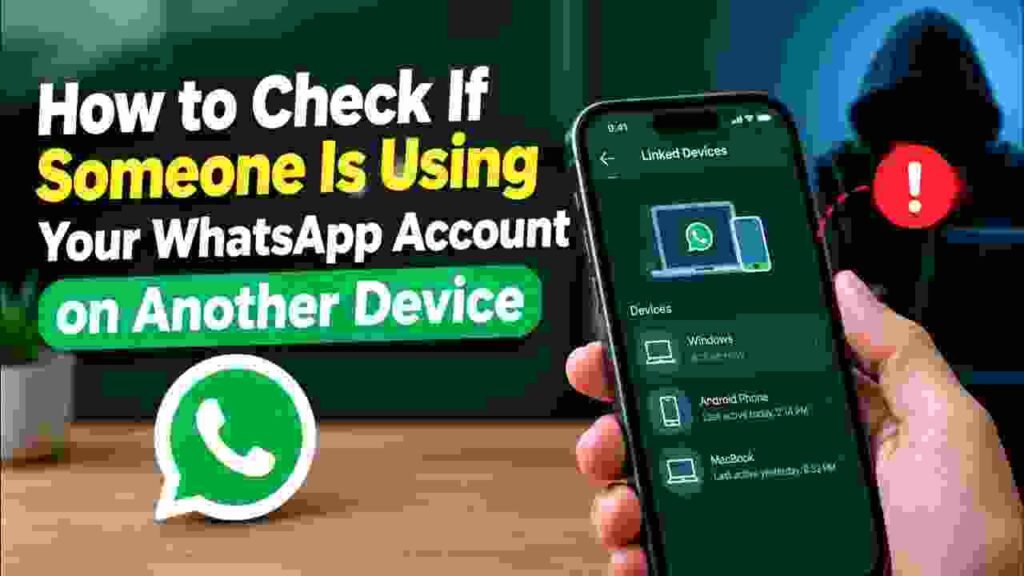
Editorial Notice: This article is for informational purposes only. Steps come from WhatsApp’s official Help Center pages, named security researchers, and news outlets, checked in October 2026. Menu names can vary by phone, app version, and language. This guide covers WhatsApp linked devices on your account, not someone using your unlocked phone.
📅 Published: October 19, 2026
A friend messages you: “Why did you send me that link?” You never sent one. Your phone shows nothing strange, and WhatsApp still opens normally. Yet someone else may be reading your chats right now.
This can happen without a stolen password. When a second device is linked to your account, it can read your messages and send new ones as you, while your own phone keeps working as usual. Security researchers have described exactly this pattern in several recent scams.
The fix takes about two minutes, and it starts in your WhatsApp linked devices list. This guide shows how to check WhatsApp linked devices, remove anything unfamiliar, recognise the warning signs of a takeover, and lock down your account.
Table of Contents
What WhatsApp Linked Devices Are {#what-are-linked-devices}

WhatsApp linked devices are extra devices connected to your account, such as a laptop, a browser session on WhatsApp Web, or a tablet. They let you use WhatsApp without picking up your phone every time.
That convenience is the reason they matter for privacy. According to Gulf News (updated October 1, 2026), you can have up to four linked devices alongside your main phone. Any one of them can see your synced chats.
Most people link a computer once and forget about it. Your WhatsApp linked devices list is where a forgotten session still shows up. A device you forgot, or one you never approved, is what this guide helps you find.
💡 Also Read: [ Online Earning 7 Methods ]
How Someone Ends Up on Your Account {#how-it-happens}
There are three common ways a stranger’s device joins your WhatsApp linked devices, and none of them needs your password.
You left a session open. You used WhatsApp Web on a shared or borrowed computer and never logged out. Anyone who uses that computer next can open your chats.
You were tricked into linking a device. Security researchers call one version “GhostPairing.” Norton describes a message, often from a hacked contact, with a link such as “Hey, I just found your photo!” The link opens a fake login page that asks for your phone number, then shows a numeric code and tells you to enter it in WhatsApp.
Entering that code links the attacker’s device to your account. Norton notes the attacker never needs your password.
You were pulled in by a fake contest. Malwarebytes research, reported by Infosecurity Magazine on August 4, 2026, describes messages asking you to vote for a friend in an online contest. The link leads to a fake WhatsApp-style page that walks you through linking a device instead.
Signs Someone Else May Be Using Your Account {#signs}
Nothing on your own phone usually changes, which is what makes this hard to notice. These are the signs that security sources describe.
| Sign | What it can mean | Source |
|---|---|---|
| An unfamiliar browser, computer, or tablet in your WhatsApp linked devices list | A device you did not link | AwareXone, Norton |
| Friends receive odd links or messages from you | Someone is sending messages as you | Kaspersky, Norton |
| Replies to messages you never sent, or deleted messages you did not remove | Another person is active in your chats | Kaspersky |
| Verification codes you did not request | Someone is trying to register your number | Kaspersky |
| Changes to your name, photo, or status you did not make | Someone has account access | Kaspersky |
| A message saying your account is in use on another device and asking you to re-register | The most telling sign, per Kaspersky | Kaspersky |
One sign alone does not prove a takeover. Two or more together are a reason to check right away.
5 Easy Steps to Check WhatsApp Linked Devices {#steps}
This is the main check, and it works on both phones. WhatsApp’s official help page describes the same route.
Step 1: Open the WhatsApp Linked Devices Screen {#step-1}
Open WhatsApp on your main phone, then follow the path for your device:
- Android: tap the three-dot menu in the top right corner, then tap Linked devices.
- iPhone: open the Settings tab, then tap Linked Devices.
Step 2: Read Every Entry {#step-2}
Look at each entry in your WhatsApp linked devices list. AwareXone puts it well: each one should be a computer, browser, or tablet that you use today.
Labels vary by phone, app version, and language. If you see a device name or browser you do not recognise, treat it as suspicious.
Step 3: Log Out of Anything Unfamiliar {#step-3}
Tap the device you do not recognise or are unsure about, then choose the option to log out or end its session. WhatsApp’s help page describes this same process on your primary phone.
If you are unsure, remove it from your WhatsApp linked devices. Removing a genuine device only means you scan a code again later.
Step 4: Look for Other Takeover Signs {#step-4}
A clean WhatsApp linked devices list is a good sign, but check the rest too. Review the signs in the table above, and ask a few close contacts whether they received anything strange from you.
If you were tricked by a link, tell your contacts. Infosecurity Magazine’s report on the Malwarebytes research advises warning your contacts, since the scam spreads through them.
Step 5: Turn On Two-Step Verification {#step-5}
Two-step verification adds a PIN that is separate from the 6-digit registration code WhatsApp sends by SMS or call, according to WhatsApp’s help page. You can also add an email address to reset a forgotten PIN.
Kaspersky gives the path as Settings > Account > Two-step verification. Choose a PIN you can remember, because it is not a one-time code.
💡 Also Read: [7 Android Privacy Settings ]
WhatsApp’s New Alert for Unknown Devices {#new-alert}
WhatsApp now checks suspicious attempts to add new WhatsApp linked devices. WABetaInfo and BusinessDay reported on June 24, 2026 that WhatsApp warns you when a link to an unfamiliar device looks risky. WABetaInfo lists the feature as available on Android and iPhone in the latest versions of the app.
According to WABetaInfo, the warning labels the attempt as a possible scam and shows the rough location of the device. It also explains what that device could do, such as read your recent chats and send messages as you.
WhatsApp’s advice is simple. If you are not setting up WhatsApp on a new device, or the location is not yours, tap Don’t link.
WhatsApp has not said what triggers the warning. Do not treat the lack of an alert as proof that a link is safe, and keep checking your WhatsApp linked devices yourself.
Hypertext also reports WhatsApp’s guidance that verifying your number, such as when entering a contest, never requires linking your WhatsApp account.
What to Do If You Are Logged Out {#logged-out}
A different situation is being logged out of WhatsApp itself. If you see a message that your account is registered on another phone, someone may have your registration code.
Kaspersky’s guide describes the recovery route. Keep your SIM in your phone, then register your number again and request a one-time code by SMS or call. Enter the code, and your PIN if you have one set.
If WhatsApp asks for a PIN you never created, tap Forgot PIN. WhatsApp says an email address, if you added one, can receive a reset link. Kaspersky says that without an email, the PIN is removed after a one-week wait.
Never share the 6-digit code with anyone. Kaspersky notes that only scammers ask for it.
How to Stop It From Happening Again {#prevention}
Protecting your WhatsApp linked devices is mostly about habits. These come directly from the security sources above.
- Never enter a pairing code or scan a QR code because a website or message asked you to. Link a device only when you start the process yourself in WhatsApp. This is advice from Norton and Malwarebytes.
- Treat links from known contacts with care. Attackers often send them from hacked accounts.
- Check your WhatsApp linked devices regularly. AwareXone suggests checking again in a day or two, then monthly.
- Log out of shared computers every time.
- Keep two-step verification on.
One honest limit: Norton notes that two-step verification may not stop GhostPairing, because that scam relies on you approving a code. It helps against other takeover routes, so use it, but do not rely on it alone.
Good to Know: How WhatsApp Linked Devices Log Out Automatically {#auto-logout}
Gulf News and AwareXone both say WhatsApp disconnects a linked device after about 30 days of inactivity, and logs devices out if your main phone goes unused for around 14 days. These come from outlets, not from a WhatsApp page we could confirm.
AwareXone adds a warning worth remembering: do not wait for those timers, because a device someone is actively using will not count as inactive.
Conclusion: Two Minutes Can Protect Your Chats {#conclusion}
Checking WhatsApp linked devices is the single fastest way to find out whether someone else can read your chats. Open the list, read every entry, and log out anything you do not recognise.
Then add two-step verification, never enter pairing codes that a website gives you, and repeat the check once a month.
If you ever find a device in your WhatsApp linked devices list that you did not link, remove it, warn your contacts, and review your account right away.
💡 Also Read: [ How to Write Safe Prompts ]
About the Author
Waqar Ahmad is a tech and digital lifestyle writer with over 6 years of experience covering mobile apps, communication platforms, and internet infrastructure. He writes to make app updates and tech news understandable for everyday readers.
Frequently Asked Questions
1. How can I tell if someone is using my WhatsApp on another device?
Open the WhatsApp linked devices screen (three-dot menu on Android, Settings tab on iPhone) and check the list. Any device you do not recognise should be logged out.
2. Can someone read my WhatsApp chats without knowing my password?
Yes, if one of your WhatsApp linked devices belongs to them. Norton and Malwarebytes both describe scams that link a device without stealing a password, by tricking you into entering a code or following a fake page.
3. How many WhatsApp linked devices can one account have?
Gulf News reports up to four linked devices alongside your main phone, which can be computers, tablets, or a second phone.
4. Does WhatsApp warn me when a new device is linked?
WhatsApp now shows a warning for suspicious linking attempts, according to WABetaInfo (June 24, 2026). It is listed as available on Android and iPhone, but WhatsApp has not said what triggers it, so keep checking manually.
5. What does “Don’t link” mean?
It cancels the linking request. WhatsApp advises tapping it if you are not setting up WhatsApp on a new device or if the location shown is not yours.
6. Will two-step verification stop someone linking a device?
Not always. Norton notes it may not stop GhostPairing, which depends on you entering a code. It still helps protect against other takeover attempts.
7. What should I do if my account says it is registered on another phone?
Register your number again with the SMS or call code, then enter your PIN if you set one. Never share the 6-digit code. If you forget the PIN, use Forgot PIN and the email reset link if you added one.
Sources
- How to unlink a device – WhatsApp Help Center
- About two-step verification – WhatsApp Help Center
- WhatsApp protects users from a common device-linking scam – WABetaInfo
- WhatsApp introduces linked device alerts – BusinessDay NG
- The latest scam plaguing WhatsApp users? Linking to unknown devices – Hypertext
- GhostPairing: A new WhatsApp threat explained – Norton
- WhatsApp Scam Hijacks Accounts via Linked Devices Feature – Infosecurity Magazine
- GhostPairing campaign abuses WhatsApp device linking – Security Affairs
- What to do if your WhatsApp account gets hacked – Kaspersky
- Someone Using My WhatsApp on Another Device? Fix It – AwareXone
- Your WhatsApp could still be linked to a device you don’t use – Gulf News