
📋 Editorial Notice: This article is for informational purposes only. Feature details are based on WhatsApp’s own statements, WABetaInfo, and named news outlets. Availability can differ by device, region, and account.
📅 Published: October 15, 2026
You open WhatsApp after installing an update, and something is different. The gear icon at the bottom of the screen is gone. In its place sits your own profile photo. Then you long-press a message and spot a new option: “Ask Meta AI.”
Neither change came with a big announcement, but this WhatsApp update changes how you reach your settings and how you check a doubtful message. Both parts of this WhatsApp update are already showing up on real devices, and they are rolling out in stages rather than all at once.
This guide explains what the WhatsApp update includes, how each feature works, what it means for your privacy, and why your friend might see it while you do not.
📋 Table of Contents
- What Is in This WhatsApp Update?
- The New “You” Tab: Your Profile Replaces Settings
- Ask Meta AI in WhatsApp Chats
- Is This WhatsApp Update Safe for Your Privacy?
- My Experience: Phone and Tablet
- How to Get This WhatsApp Update
- Conclusion
- FAQs
What Is in This WhatsApp Update? {#whats-in-update}
This WhatsApp update brings two separate changes. One is about design and account management. The other is about artificial intelligence inside your chats. They arrived at different times, but together they show where the app is heading: more personal, and more connected to Meta AI.
| Feature | What it does | Where you notice it | Can you turn it off? |
|---|---|---|---|
| “You” tab | Replaces the Settings icon with your profile photo and opens a profile-focused page | Bottom navigation bar | It is a layout change, not a setting |
| Ask Meta AI | Lets you send a chosen message to Meta AI for an explanation or fact-check | Message menu and chat screen | Meta AI itself cannot be fully switched off |
The New “You” Tab: Your Profile Replaces Settings {#you-tab}
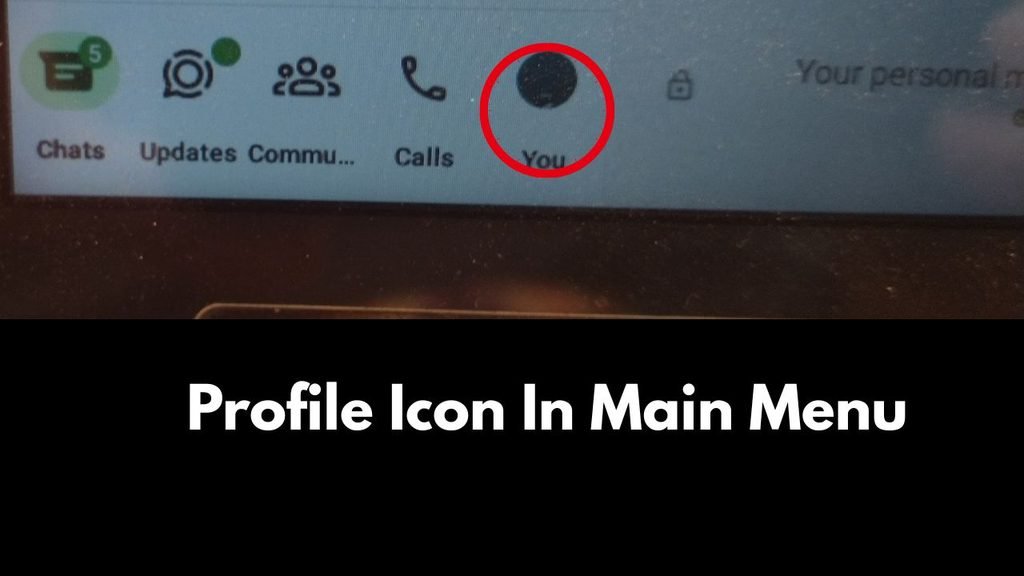
What actually changed
In older versions of the iPhone app, the bottom bar ended with a gear-shaped Settings icon. After the WhatsApp update, that icon is replaced by your profile photo, and the tab is renamed “You.”
According to WABetaInfo, the profile tab is basically the old Settings tab with some additions. Privacy, chats, and notifications are still there. They now sit under your profile instead of a generic menu.
Why WhatsApp made this change
The main reason behind this WhatsApp update is multi-account support. WABetaInfo explains that WhatsApp is testing the ability to use more than one account, and the profile icon makes it easy to see which account is active at a glance. Tapping the tab also helps users understand that they can open the account list.
If you already use Instagram or Threads, the idea will feel familiar. Both apps show your profile photo as a tab icon.
When did this WhatsApp update start rolling out?
WABetaInfo first spotted the redesign in an iOS beta build (26.5.10.76) and then reported on March 17, 2026 that WhatsApp for iOS 26.10.73 was widely rolling out the profile tab through the App Store. The official changelog described it as a profile tab where you can manage your account and express yourself.
The idea is not entirely new. IANS reported back in August 2023 that a “You” tab had appeared in an iOS beta, which shows how long WhatsApp tested it.
The cover photo, and why some people still see “Settings”
Alongside the tab, WhatsApp refreshed the profile page with a default cover photo, a large header image at the top. WABetaInfo notes that only a limited number of users have it, and nobody can change the cover photo yet.
It also says some users may still see the tab labelled “Settings.” That is normal for a staged WhatsApp update. The new name appears once the feature is enabled for your account.
What WhatsApp is still refining
Beta builds suggest WhatsApp is still tuning the layout. TechJuice reports that a newer TestFlight build (26.40.10.76) moves less-used options, such as Account, Privacy, Chats, Appearance, Notifications, and Storage and data, behind a separate menu with a search bar. Treat that part as beta behaviour, since it can change before reaching everyone.
💡 Also Read: [ WhatsApp Username Feature ]

Ask Meta AI in WhatsApp Chats {#ask-meta-ai}
What the feature does
Ask Meta AI is a shortcut that connects a message in your chat to Meta’s AI assistant. Before this, you had to forward a message to Meta AI manually and then type your question. Now the WhatsApp update puts the option directly in the message menu.
WABetaInfo describes it as useful for suspicious statements, because you can quickly check whether something is accurate. The feature is optional, so nothing happens unless you choose it.
How to use it
- Open any chat and press and hold the message you want to check.
- Tap “Ask Meta AI” from the message menu.
- A chat with Meta AI opens, with your chosen message quoted as a reference.
- Add your question or extra context, then press send.
The last step matters. On iOS, WABetaInfo says the message is not sent automatically. You still have to confirm, add context or a question, and send the prompt yourself.
Two ways to reach Meta AI
There are two entry points, and people often mix them up. The first is the message-menu shortcut described above. The second is the Meta AI icon on the chat screen and in the search bar.
ProPakistani reported in September 2025 that the in-chat Ask Meta AI option had started appearing for some Pakistani users. It let people type questions in the same conversation and forward messages or media. The report also noted that activation looked server-side, which explains why installing the WhatsApp update does not always make it appear.
Message Summaries and Private Processing
A related tool is Message Summaries, which creates a private recap of unread messages. WhatsApp says it uses Private Processing technology, so Meta and WhatsApp cannot see your messages or the summaries, and other people in the chat cannot see that you used it.
WhatsApp’s announcement said this launched first in the United States, and that it is optional and off by default. Check your own app before assuming you have it.
Can you turn Meta AI off?
Not completely. WhatsApp’s own video on the topic says you cannot turn off Meta AI, but that using it is always optional. dpa also reported that the assistant can be ignored or have individual chats deleted, but not removed.
What you can control: Message Summaries and writing help have their own switches, and Advanced Chat Privacy lets you block messages in a chat from being used for AI features.
Is This WhatsApp Update Safe for Your Privacy? {#privacy}
This is the question most people ask about the WhatsApp update, and the answer is reassuring but specific. WhatsApp states that Meta AI can only read the messages you choose to send it. Your other personal messages stay out of reach, and your chats remain protected by end-to-end encryption.
A viral message in 2025 claimed that group admins had to switch on Advanced Chat Privacy to stop AI from reading all chats. Fact-checkers found that claim false. Meta AI only sees what a user shares with it directly.
Still, one sensible habit applies. WhatsApp’s help section warns that AI replies can sometimes be incorrect, so do not paste sensitive or confidential details into an AI chat. Treat the answer as a starting point, not a final verdict.
My Experience: Phone and Tablet {#experience}
I checked both features on my own devices. The Ask Meta AI option is already showing on my phone, and the You tab has appeared on my tablet. [Add device model, WhatsApp version, and screenshots here.]
The difference between devices is a good example of how staged rollouts work. The same WhatsApp update can reach one device a few days before another, even on the same account. If one of your devices is missing a feature, that does not mean something is wrong with it.
How to Get This WhatsApp Update {#how-to-get}
There is no switch to flip. You can improve your chances with a few simple steps:
- Update WhatsApp from the App Store or Google Play Store.
- Close the app fully and reopen it.
- Check the bottom bar for your profile photo, and the message menu for Ask Meta AI.
- If nothing appears, wait. Server-side features switch on gradually.
WhatsApp’s own help centre explains that a new WhatsApp update can take days or weeks to reach every account. Joining the beta program only shows you features earlier. It is not required.
Conclusion: A Small WhatsApp Update With Real Impact {#conclusion}
This WhatsApp update is easy to miss, but it matters. The You tab makes your profile the centre of the app and prepares the ground for multiple accounts. Ask Meta AI puts a fact-checking and explanation tool one tap away from any message.
Both parts of the WhatsApp update are optional to use and both reach people gradually. Update the app, look for the profile photo in the bottom bar, and try Ask Meta AI on a message you are unsure about. Just keep sensitive information out of it.
💡 Also Read: [ WhatsApp Calling Features ]
About the Author
Waqar Ahmad is a tech and digital lifestyle writer with over 6 years of experience covering mobile apps, communication platforms, and internet infrastructure. He writes to make app updates and tech news understandable for everyday readers.
Frequently Asked Questions
1. What is the new You tab in WhatsApp?
Part of the latest WhatsApp update, it replaces the Settings icon in the bottom bar with your profile photo. Tapping it opens a profile-focused page where you manage your account, privacy, chats, and notifications.
2. Why do I still see Settings instead of You?
WhatsApp rolls features out in stages. WABetaInfo says some users still see the old label, and the new name appears once it is enabled for your account.
3. Is the You tab linked to multiple accounts?
Yes, in part. The profile icon helps you recognise the active account, which fits WhatsApp’s testing of multi-account support.
4. What does Ask Meta AI do?
It lets you send a message from your chat to Meta AI to ask for an explanation or to check whether a claim is accurate. You add the question and confirm before anything is sent.
5. Does Meta AI read all my WhatsApp chats?
No. WhatsApp says Meta AI can only read the messages you send to it. Your other personal chats stay protected by end-to-end encryption.
6. Can I turn off Meta AI in WhatsApp?
Not completely. WhatsApp says using Meta AI is optional, but the assistant cannot be fully switched off. You can delete AI chats and use Advanced Chat Privacy to limit AI features in a chat.
7. Why can’t I see Ask Meta AI after updating?
Some parts of this WhatsApp update are switched on from WhatsApp’s servers, so they do not appear on every device at once. Update the app and check again after a few days.
Sources
- WhatsApp is widely rolling out a new profile tab on iOS – WABetaInfo
- WhatsApp beta for iOS 26.5.10.76: what’s new – WABetaInfo
- WhatsApp Replaces Settings With New ‘You’ Tab on iPhone – TechJuice
- WhatsApp update brings the new profile tab to iOS users – 9to5Mac
- WhatsApp rolling out new interface for app settings on iOS beta – IANS (Aug 2023)
- WhatsApp beta for Android 2.25.23.24: what’s new – WABetaInfo
- WhatsApp beta for iOS 25.26.10.71: what’s new – WABetaInfo
- Pakistan Gets WhatsApp’s “Ask Meta AI” Feature for Chat Messages – ProPakistani
- Catch up on conversations with Private Message Summaries – WhatsApp Blog