Table of Contents
- What Does “There Was a Problem Logging You In” Actually Mean?
- Common Causes of the Login Error (At a Glance)
- Step-by-Step Fixes That Actually Work
- When the Error Happens Specifically With a Google Account
- When It Happens on iPhone or iPad
- Why Banking and Finance Apps Show This Error More Often
- Preventing This Error From Happening Again
- Frequently Asked Questions
- Final Thoughts
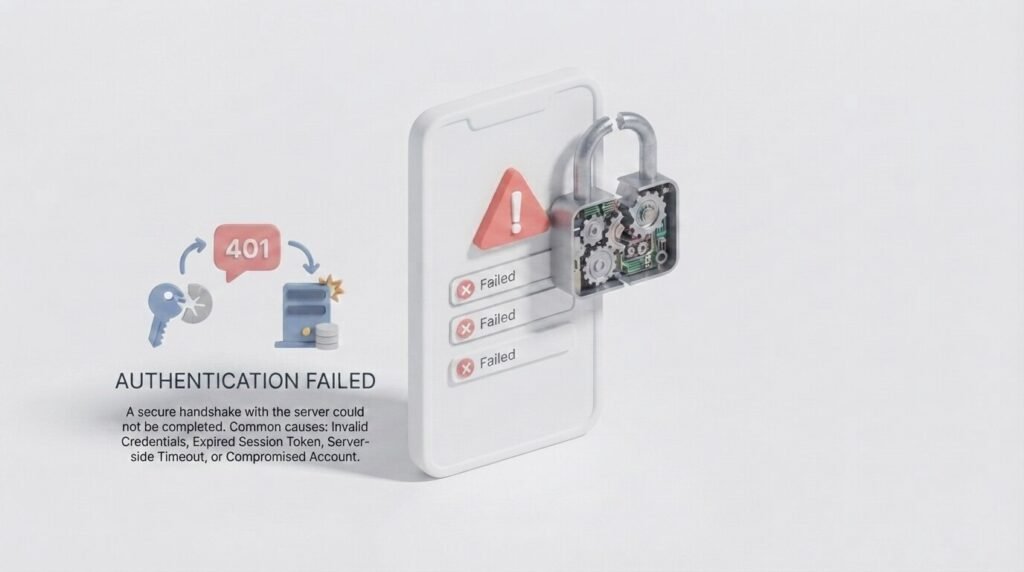
If you clicked on this article, chances are you were in the middle of something important — checking your Gmail, opening an app, or trying to log into an account — when suddenly a message popped up saying “there was a problem logging you in.” No real explanation, no clear reason, just a vague error sitting between you and your account.
You are not alone. This is one of the most commonly searched login errors on Google, and it shows up across dozens of platforms — Android apps, Google accounts, Spotify, banking apps, and even desktop browsers. The frustrating part is that Google, Android, and most app developers rarely explain why this happens, which is exactly why so many people end up stuck.
In this article, we’ve gone through real user reports, official support pages, and community forums to understand exactly what triggers this error and how people actually managed to fix it — not generic advice, but solutions that have worked in practice.
Read Our Complete Article About Facebook Monetization Tools
What Does “There Was a Problem Logging You In” Actually Mean?
This message is a generic authentication error. It doesn’t point to one single issue — instead, it’s the app or website’s way of saying “something in the login process failed, but we can’t tell you exactly what.” That’s why the same error message can appear for completely different reasons depending on your device, your internet connection, or even the time and date settings on your phone.
In most cases, the problem sits in one of these places. This is exactly the situation most people face when the “there was a problem logging you in” message appears without warning:
- Your internet connection or the app’s server
- Cached login data stored on your device
- An outdated app or browser version
- Incorrect device date and time settings
- A temporary restriction or security check on your account
- A conflict between your account and the sign-in method you’re using
Once you understand which category your case falls into, fixing it becomes much easier.
Common Causes of the Login Error (At a Glance)
The table below breaks down exactly why the “there was a problem logging you in” message shows up, based on real patterns reported by users across different apps and devices.
| Cause | Where It Usually Happens | How Common It Is |
|---|---|---|
| Weak or unstable internet connection | Android and iOS apps | Very common |
| Corrupted app cache or cookies | Browsers and mobile apps | Very common |
| Outdated app or browser version | Older phones, unused browsers | Common |
| Wrong date and time on device | Android phones | Common |
| Server downtime on the platform’s end | Google, Spotify, banking apps | Occasional |
| Account flagged for suspicious activity | Google, financial apps | Occasional |
| Conflicting saved accounts or sign-in method | Apps using “Sign in with Google” | Occasional |
| VPN or ad-blocker interference | Any app or browser | Occasional |
This table isn’t just theory — it reflects the patterns people have actually reported when running into the “there was a problem logging you in” message on different platforms.
Facebook Contact Support Team Official Site
Step-by-Step Fixes That Actually Work
Before trying anything technical, start with the basics. A surprising number of people fix this error in under two minutes just by working through these first few steps.
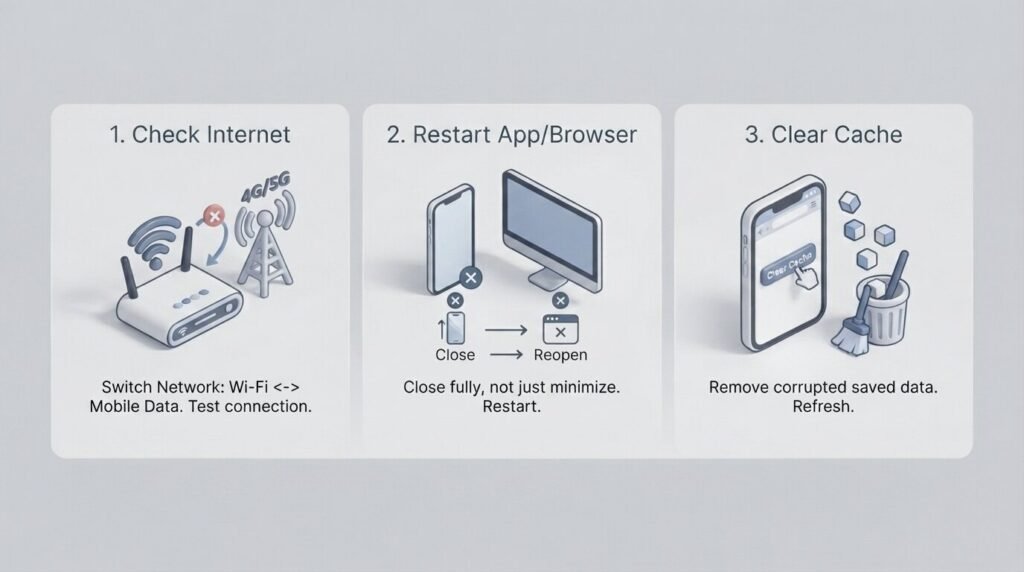
1. Check Your Internet Connection First
This sounds obvious, but it’s the number one reason login attempts fail silently and trigger the “there was a problem logging you in” message. Switch from Wi-Fi to mobile data (or the other way around) and try logging in again. If you’re on a public or office Wi-Fi network, it may be blocking the login request entirely without showing you a clear reason.
2. Restart the App or Browser Completely
Don’t just minimize the app — close it fully from your recent apps list, then reopen it. On desktop, close every open tab of the site and restart the browser. This clears any temporary session that may be causing the “there was a problem logging you in” message to repeat.
3. Clear Cache and Cookies
Saved login data can become corrupted over time, especially after an app update. Here’s how to clear it:
On Android: Go to Settings > Apps > (select the app) > Storage > Clear Cache. If clearing the cache doesn’t help, try Clear Data as well — just note this will log you out completely.
On a browser (Chrome, Edge, Safari): Open Settings > Privacy > Clear browsing data, and select cookies and cached files for the last 24 hours only, so you don’t lose unrelated saved data.
4. Update the App or Browser
An outdated app version is one of the most overlooked reasons behind the “there was a problem logging you in” error. Developers frequently change how their sign-in system communicates with servers, and older app versions simply can’t keep up. Head to the Play Store or App Store, check for updates, and install the latest version before trying again.
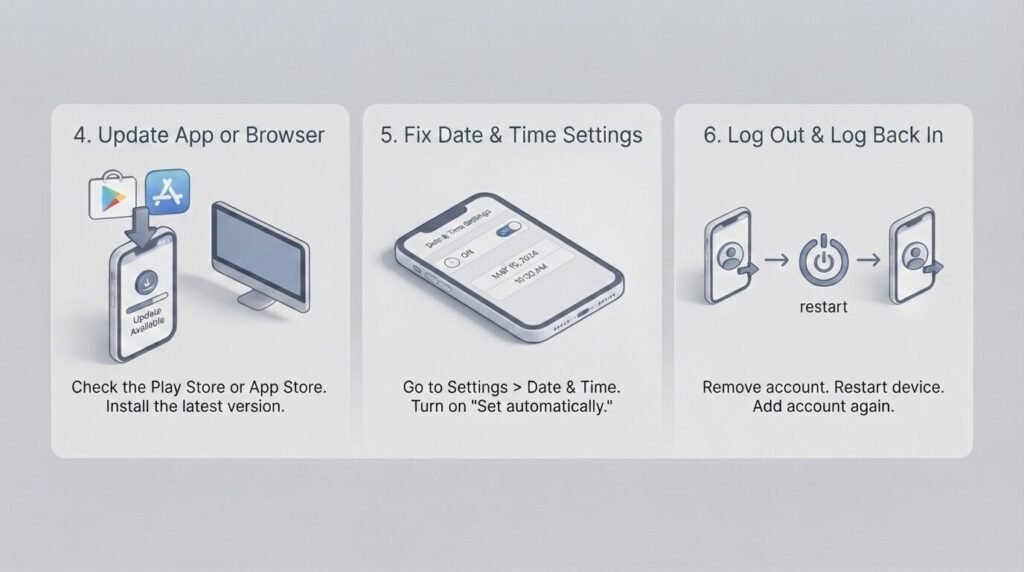
5. Fix Your Device’s Date and Time Settings
This is a surprisingly common cause of the “there was a problem logging you in” error, especially on Android. If your phone’s date, time, or time zone is even slightly wrong, secure login systems can reject the connection outright. Go to Settings > System > Date & Time and turn on “Set automatically.”
6. Log Out and Log Back In
If you’re able to access the account on another device or browser, try removing the account from the device that’s giving you trouble, restart the device, and add the account again from scratch.
7. Disable VPNs, Proxies, and Ad Blockers Temporarily
Security systems used by Google and many apps often flag VPN or proxy traffic as suspicious, which can silently block your login attempt. Turn these off temporarily and try logging in again — this single step resolves the issue for a large number of users.
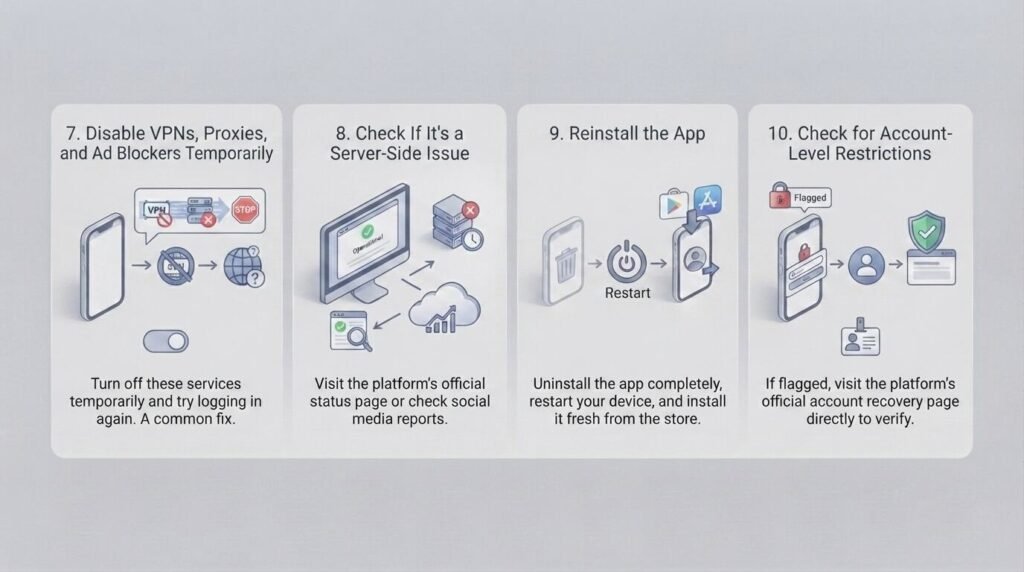
8. Check If It’s a Server-Side Issue
Sometimes the problem isn’t on your end at all. Before spending more time troubleshooting, check the platform’s official status page or search social media to see if other users are reporting the same issue at the same time. If it’s a server outage, the only real fix is waiting it out.
9. Reinstall the App
If nothing above works, uninstall the app completely, restart your device, and install it fresh from the Play Store or App Store. This resets any broken files that clearing cache alone couldn’t fix.
10. Check for Account-Level Restrictions
If your account has been flagged for unusual activity, the login system may block access as a safety measure rather than showing a clear “account restricted” message. In this case, visit the platform’s official account recovery page directly (never through a link sent in an email or message) and follow their verification steps.
Read Our Complete Article About How To Sell Kids Colouring Books On Etsy
When the Error Happens Specifically With a Google Account
Since Google accounts power sign-ins across thousands of apps, this error shows up especially often when using “Sign in with Google.” A few extra checks apply here:
- Confirm your Google Account isn’t disabled by trying to log into Gmail directly in a browser.
- If Gmail works but a third-party app doesn’t, the issue is usually with that app’s server, not your Google account.
- Turn on 2-Step Verification if you suspect unauthorized access attempts are triggering extra security checks.
- If you recently changed your password, allow a few minutes for the change to sync across all connected apps before trying again.
When It Happens on iPhone or iPad
iOS users see the “there was a problem logging you in” error less often than Android users, but it’s not rare. On iPhone, the most frequent cause is a background app refresh setting that’s turned off, which stops the app from properly syncing with its server during login. Go to Settings > General > Background App Refresh and make sure it’s enabled for the app giving you trouble. It also helps to check Settings > [App Name] and confirm the app has permission to use cellular data, since some login requests fail silently on Wi-Fi-only mode if the app expects a data connection to verify your device.
If none of that helps, offload the app instead of deleting it outright. Go to Settings > General > iPhone Storage, select the app, and choose “Offload App.” This clears temporary files while keeping your documents and data, then reinstalls a clean copy from the App Store the next time you open it.
Why Banking and Finance Apps Show This Error More Often
If you’ve run into “there was a problem logging you in” on a banking or payment app specifically, the cause is usually stricter than a simple cache issue. Financial apps run extra security layers that check your device fingerprint, location, and network reputation before allowing access. A rooted or jailbroken phone, an active VPN, or even logging in from a new location can trigger this message as a precaution rather than an actual bug. In these cases, the safest fix is contacting the bank’s official support line directly rather than repeatedly retrying, since too many failed attempts can lead to a temporary account lock.
Preventing This Error From Happening Again
Once you’ve fixed it, a few habits can keep the “there was a problem logging you in” message from coming back:
- Keep your apps and browser updated automatically
- Avoid logging into multiple accounts on the same app without fully logging out first
- Keep your device’s date and time on automatic settings
- Avoid using VPNs on apps that require strict identity verification, such as banking apps
- Clear your app cache every few weeks if you use several accounts regularly
Frequently Asked Questions
Why do I keep getting “there was a problem logging you in” even after entering the correct password? This usually isn’t a password issue at all. It’s more often caused by a cache conflict, an outdated app, or a temporary server problem on the platform’s side. Try clearing the app’s cache and updating it before resetting your password.
Does this error mean my account has been hacked? Not necessarily. In most cases, it’s a technical glitch related to your connection, app version, or device settings. It only points to a security concern if you also receive a separate message specifically about suspicious activity or account suspension.
Why does the error happen only on my phone and not on my computer? This points to a local, device-specific issue — usually a corrupted cache, an outdated app, or incorrect date and time settings on that particular phone, rather than a problem with your account itself.
Can a VPN really cause this login error? Yes. Many platforms treat VPN or proxy traffic as a security risk and may silently block the login attempt. Turning off your VPN before logging in resolves this for a large number of users.
How long does a server-side login issue usually last? It depends entirely on the platform, but most server-related outages are resolved within a few hours. Checking the app’s official status page or social media accounts is the fastest way to confirm if it’s a widespread issue.
Is reinstalling the app safe, and will I lose my data? Reinstalling is safe for most apps since your account data is stored on the server, not your device. However, any settings saved only locally on your phone may need to be set up again after reinstalling.
Final Thoughts
The “there was a problem logging you in” error is annoying precisely because it doesn’t explain itself — but as this breakdown shows, it almost always comes down to a handful of predictable causes: connection issues, outdated apps, cache problems, device settings, or a temporary server hiccup. Working through the steps in order, starting with the simplest fixes, resolves the issue for the vast majority of users without needing to contact support at all.
If you’ve tried everything above and the error still persists, the most reliable next step is reaching out to that specific platform’s official support channel, since they can check for account-specific restrictions that aren’t visible from your end.