📋 Editorial Notice: This article is for informational purposes only. All information is based on verified sources including Android Authority, SpeedTestHQ, MakeUseOf, Prizm Institute, Avast, and official carrier documentation.
📅 Published: August 23, 2026
Slow WiFi and Mobile Data: 7 Proven Fixes That Work (2026)
Table of Contents
- Why “Just Restart It” Doesn’t Always Work
- Fix 1 — WiFi Connected But Nothing Loads
- Fix 2 — Fast in One Room, Dead in Another
- Fix 3 — Whole House Slows Down When Everyone’s Online
- Fix 4 — Mobile Data Stopped With No Explanation
- Fix 5 — Data Works But Painfully Slow
- Fix 6 — Was Fine Yesterday, Sluggish Today
- Fix 7 — The Router Is Simply Too Old
- When to Call Your Provider
- Conclusion
- About the Author
- FAQ
Slow WiFi and mobile data is one of those problems that feels urgent every single time it happens. A page that won’t load, a video that keeps buffering, a message that just sits there with a spinning wheel — it’s frustrating every single time.
The good news? In 2026, slow WiFi and mobile data is almost never a sign of something seriously wrong. Most of the time, the cause is something specific and easy to identify once you know where to look — rather than a mystery that requires calling your provider and waiting on hold for 45 minutes.
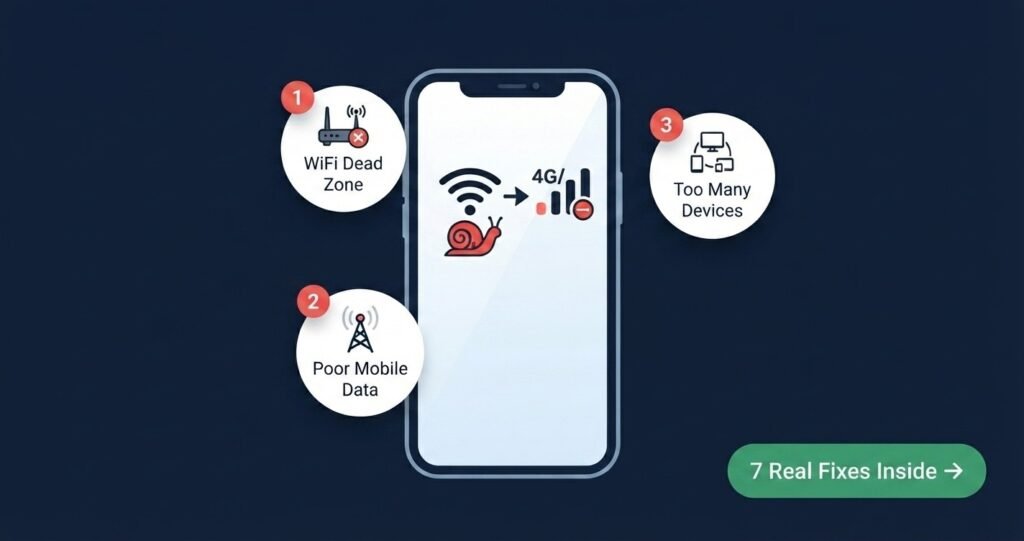
This guide walks through the seven real reasons behind slow WiFi and mobile data in 2026, based on what people are actually running into, along with practical fixes for each one.
Why “Just Restart It” Doesn’t Always Work {#why}
Restarting a router or phone is often the first piece of advice anyone gets for slow connectivity problems — and it does genuinely fix a lot of cases. But not all of them. That’s because slow WiFi and mobile data can come from several completely different places: your router’s placement, how many devices are sharing bandwidth, your carrier’s network, or a setting on your phone that got flipped by accident.
A restart clears temporary glitches, but it won’t fix a router that’s simply too old — or a room that’s too far from the signal. Matching the fix to the actual cause is what actually solves the problem, rather than repeating the same reset over and over.
It also helps to know which type of “slow” you’re dealing with before troubleshooting:
- Slow WiFi at home tends to be about the router — its age, placement, or how many devices are sharing it
- Slow mobile data usually comes down to signal strength, carrier congestion, or a setting on the phone
Treating both as the same problem is one of the most common reasons people spend time on fixes that were never going to help.
Fix 1 — WiFi Shows “Connected” But Nothing Actually Loads {#fix1}
Why This Slow WiFi Problem Happens
This is one of the more confusing versions of slow WiFi and mobile data problems, because everything looks fine on the surface. Your phone says “Connected.” The bars are full. But no page loads, no app connects, and no message sends.
What’s usually happening is that the device authenticated with the router but never properly established a working data connection — a stuck handshake, essentially. The phone and router are technically talking to each other, but no actual data is passing through.
How to Fix It
Step 1: Forget the network entirely on your device — go to Settings → WiFi → tap your network → Forget
Step 2: Reconnect from scratch by selecting the network again and re-entering the password
Step 3: If still not loading, restart your router by unplugging it for 30 seconds, then plug back in
This forces a fresh authentication and resolves the majority of “connected but no internet” situations without touching a single router setting.
📌 Official resource: Fix internet connection problems on Android — Google Support
💡 Also Read: If your Android phone itself is running slow — not just the internet — check our complete Android Problems Fix Guide covering post-update lag, notification delays, and cache buildup.
Fix 2 — Speed Is Fine in One Room and Terrible in Another {#fix2}
Why This Slow WiFi Problem Happens
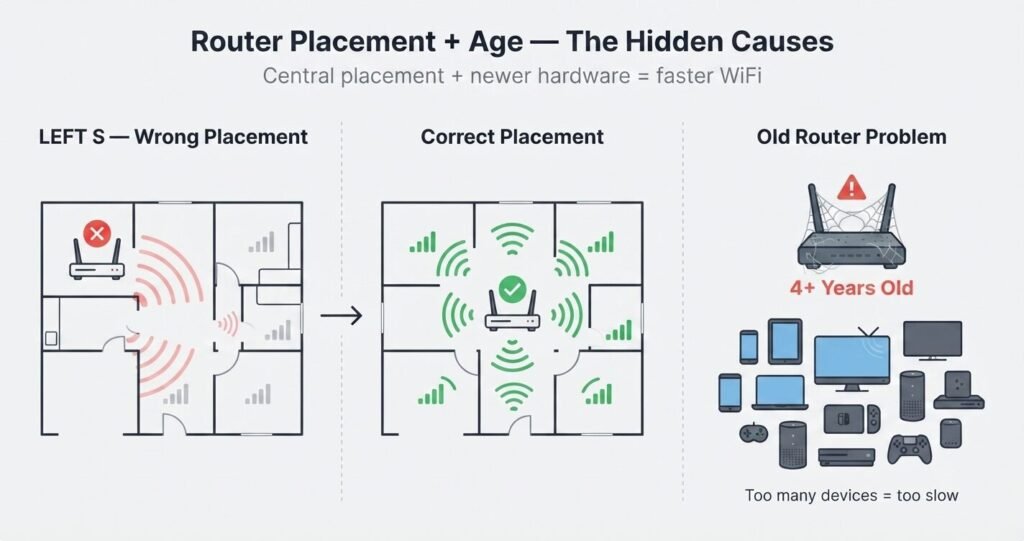
This almost always comes down to router placement rather than your internet plan. Physical distance, thick walls, mirrors, and large appliances between you and the router can all weaken the signal significantly by the time it reaches you.
The kitchen is the worst offender — microwaves and other kitchen electronics emit radio waves on the same 2.4GHz frequency that WiFi uses, causing direct interference every time they run.
How to Fix It
Move your router to a central, elevated location:
- Place it away from walls and corners
- Keep it off the floor — elevated placement improves signal spread
- Keep it out of the kitchen entirely if possible
- Keep it away from microwaves, cordless phones, and baby monitors
Switch WiFi bands:
If your router is dual-band, connect to 5GHz for speed when you’re close to the router. Switch to 2.4GHz for better range when you’re in a far room. The 5GHz band is faster but has shorter range; 2.4GHz reaches further but is slower and more congested.
Fix 3 — Everything Slows Down When the Whole Household Is Online {#fix3}
Why This Slow WiFi and Mobile Data Problem Happens
This is bandwidth congestion — pure and simple. Every connected device pulls from the same limited pool of bandwidth. Once you have 15 to 20 devices online at the same time — phones, laptops, smart TVs, security cameras, smart speakers, gaming consoles — each one gets a noticeably smaller share.
The average UK or US household in 2026 has 25+ connected devices. Most routers from 3–4 years ago were designed for 10–12.
How to Fix It
Step 1: Open your router’s admin panel (usually 192.168.1.1 in a browser) and check the connected devices list
Step 2: Disconnect devices you’re not actively using — especially smart home devices that run 24/7
Step 3: Look for anything unfamiliar on the connected list — unknown devices consuming bandwidth without you knowing
Step 4: Enable Quality of Service (QoS) settings in your router if available — this lets you prioritize bandwidth for specific devices like your work laptop or TV
Step 5: Schedule large downloads and backups (Google Photos, iCloud, Windows Update) for overnight when no one else is using the network
Fix 4 — Mobile Data Stopped Working With No Explanation {#fix4}
Why This Slow WiFi and Mobile Data Problem Happens
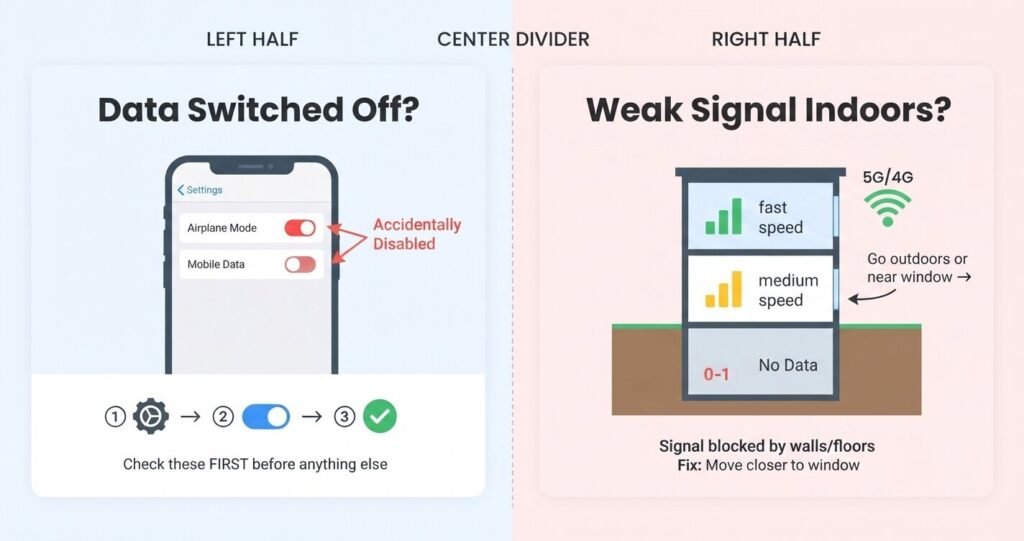
Before assuming there’s a network-wide issue, two very common accidental causes are worth ruling out first: Airplane Mode getting toggled on without you noticing, and the Mobile Data switch itself getting flipped off. Both can happen silently through a system update or an aggressive battery-optimization feature — especially after updating to Android 15 or One UI 7.
Samsung Galaxy users reported this exact issue in mass on Samsung Community forums after a December 2025 update — 4G showing full bars but zero internet working.
How to Fix It
Step 1: Pull down your notification shade and check — is Airplane Mode on? Toggle it off if so
Step 2: Go to Settings → Network & Internet → Mobile Network and confirm Mobile Data is switched ON
Step 3: Toggle Airplane Mode ON for 15 seconds, then OFF — this forces your phone to reconnect to the nearest tower
Step 4: If still not working, go to Settings → System → Reset Options → Reset WiFi, Mobile & Bluetooth — this resets network settings without deleting any personal data
Step 5: Check if your carrier is experiencing an outage — visit your carrier’s status page or check Downdetector
Fix 5 — Data Works But It’s Painfully Slow {#fix5}
Why This Slow Mobile Data Problem Happens
This is commonly a signal strength issue rather than anything wrong with your actual data plan. Buildings, basements, underground areas, and rooms far from windows can weaken cellular signal significantly — even when your phone shows several bars. Bars measure signal presence, not signal quality.
It can also be carrier throttling — many carriers reduce speeds after you exceed a data threshold on “unlimited” plans. Others deprioritize your connection during peak hours in congested areas.
How to Fix It
Step 1: Check actual signal — go to Settings → About Phone → Status → SIM Status for your real signal reading in dBm (closer to 0 is stronger: -70 dBm is excellent, -100 dBm is weak)
Step 2: If indoors, step outside or near a window — if speeds improve immediately, it’s a coverage/building penetration issue, not your plan
Step 3: Switch network mode — Settings → Mobile Network → Preferred Network Type — try switching between 5G, 4G/LTE, and 3G to find the strongest available
Step 4: Check your data usage against your plan — if you’ve exceeded your high-speed threshold, contact your carrier to add data or confirm your speeds are being throttled
Step 5: Change your DNS to a faster one: Settings → Network & Internet → Private DNS → type one.one.one.one (Cloudflare) for faster encrypted DNS that often improves browsing speed independently of your signal
Fix 6 — Connection Was Fine Yesterday, Sluggish Today With Nothing Changed {#fix6}
Why This Happens
Routers accumulate small glitches and cache buildup over time — the same way any piece of hardware does after running continuously for weeks. This kind of unexplained slowdown is one of the most common patterns users report, and it has nothing to do with your internet plan or carrier.
Android phones after the December 2025–January 2026 Samsung updates also reported this exact pattern — intermittent slow WiFi with no apparent cause, fixed by clearing the system cache.
How to Fix It
Full router power cycle (the right way — not just unplugging and back):
- Unplug both your modem AND your router
- Wait a full 30 seconds — not 5, not 10. Thirty seconds lets capacitors fully drain
- Plug the modem in first — wait for it to fully connect (lights stabilize, usually 60–90 seconds)
- Then plug the router back in and wait for it to fully boot
- Reconnect your device and test
Skipping the 30-second wait and the modem-first order is the most common reason this fix fails.
On your Android phone:
Go to Settings → Apps → (your browser or slow app) → Storage → Clear Cache. For WiFi issues specifically, also clear the cache for Settings and Wi-Fi provisioner apps.
Fix 7 — The Router Itself Is Simply Too Old {#fix7}
Why This Slow WiFi Problem Happens
If your router is more than 4–5 years old, it likely cannot keep up with current WiFi standards — especially once 10 or more devices are connected simultaneously. This is a frequent hidden cause that people consistently mistake for a problem with their internet plan.
A router from 2019–2020 supports WiFi 5 (802.11ac) at best. Current devices in 2026 support WiFi 6 and WiFi 6E — and even budget Android phones now ship with faster wireless chips than what older routers can handle.
How to Fix It
Step 1: Run a speed test on a brand-new device sitting right next to your router — then compare with an older device and a device far from the router
Step 2: If the new device next to the router also shows low speeds, the problem is upstream (ISP side). If the new device is fast but older devices are slow, the router is the bottleneck
Step 3: Check your router’s age and specs — anything before 2020 with 10+ regular users is a strong candidate for replacement
Step 4: For most households in 2026, a WiFi 6 router (not WiFi 6E — that’s overkill for most) in the $80–$150 range will handle 25+ devices without strain
When to Contact Your Provider {#provider}
Most cases of slow WiFi and mobile data get resolved through the fixes above. But contact your carrier or ISP when:
- Mobile data stays slow even outdoors with full signal bars — this points to a carrier-side issue, SIM problem, or account restriction
- A wired speed test directly from a laptop connected by ethernet cable shows speeds far below your plan — the issue is upstream of your home network entirely
- The problem started immediately after a plan change, SIM swap, or account update
- Multiple people in your area are reporting the same issue on Downdetector
Your provider can check for local outages, account throttling, or SIM registration issues that aren’t visible from your end. <!– INTERNAL LINK 2 –>
💡 Also Read: Having issues with Google Play Store downloads or apps not updating? Check our Google Play Store Problems Fix Guide — six common issues with step-by-step solutions.
Conclusion: Slow WiFi and Mobile Data Is Almost Always Fixable {#conclusion}
Slow WiFi and mobile data almost always traces back to something specific and fixable — a router placed in the wrong spot, too many devices competing for bandwidth, a toggle switched off by accident, or hardware that’s simply aged out of keeping up.
The key is matching the fix to the actual cause rather than repeating the same restart hoping for a different result. Work through the fix that matches your specific situation, and most people are back to normal speeds within a few minutes.
If slow WiFi and mobile data persists after you’ve tried the relevant fix — especially if mobile data stays sluggish even outdoors with full bars — that’s a fair sign the issue sits with your carrier, and reaching out to them directly will get you further than any additional troubleshooting on your own.
About the Author {#author}
Waqar Ahmad is a tech and digital lifestyle writer with over 6 years of experience covering Android devices, mobile connectivity, and smartphone troubleshooting. Committed to making tech fixes understandable and actionable for everyday readers.
Frequently Asked Questions About Slow WiFi and Mobile Data {#faq}
1. Why is my WiFi slow but my mobile data works fine?
That usually points to something specific to your home network — router placement, interference from appliances, an overloaded router, or too many devices sharing bandwidth — rather than an issue with your internet plan itself. Try forgetting and reconnecting to your WiFi network and doing a proper router power cycle with a full 30-second wait.
2. Does restarting my phone actually fix mobile data problems?
Often, yes. Restarting refreshes the device’s connection to the cellular network and clears temporary system errors that can quietly block data even when signal bars look completely normal. If a restart doesn’t help, try toggling Airplane Mode on for 15 seconds then off — this forces a fresh tower connection.
3. How many devices is too many for a home WiFi network?
It depends on your router’s age and specifications, but once you’re regularly running 15 to 20 devices simultaneously, most routers from before 2021 start showing real strain. If you have 20+ devices, a WiFi 6 router upgrade is likely the most impactful fix available.
4. Can old router hardware really cause slow speeds even with a fast internet plan?
Yes. A router more than four or five years old often cannot fully support current WiFi standards, which creates a bottleneck regardless of how fast the underlying internet plan actually is. Run a wired speed test to confirm — if wired speeds match your plan but WiFi is slow, the router is the problem.
5. Why does my mobile data work outside but not indoors?
This is almost always a signal strength issue caused by walls, floors, thick concrete, or being underground weakening the cellular signal — rather than a problem with your account or device. Cellular signals, especially high-band 5G, struggle to penetrate building materials. Step near a window or outside to confirm, then consider a cellular signal booster if you consistently have this problem indoors.
📜 Editorial Disclaimer: This article is written purely for informational and educational purposes. All fixes are based on verified sources including SpeedTestHQ (May 2026), Android Authority, MakeUseOf (April 2026), Prizm Institute (January 2026), Avast (June 2026), Samsung Community forums (December 2025), and official Google Android documentation.