📋 Editorial Notice: This article is for informational purposes only. All fixes and steps are based on verified sources including Appuals, TechBeams, Prizm Institute, The Android Portal, DevX, and Android’s official documentation.
📅 Published: August 21, 2026
- Problem 1 — Phone Lagging After Software Update
- Problem 2 — Notifications Not Arriving on Time
- Problem 3 — Cache and Junk Files Building Up
- Quick Reference Checklist
- Conclusion
- About the Author
- FAQ

You updated your Android. Maybe you were excited about the new features. Maybe your phone prompted you and you just tapped “Install Now” without thinking too much about it. Either way — now your phone feels slower, your WhatsApp notifications are showing up 20 minutes late, and your storage is somehow running low even though you haven’t downloaded anything new.
You’re not alone. These are three of the most searched Android problems in 2026 — and the good news is that all three have clear, practical Android problems fix steps that don’t require a factory reset, technical expertise, or spending money on a new device.
This Android problems fix guide covers each one in detail. Real fixes, real steps, no filler.
Android Problems Fix — Problem 1: Phone Lagging After a Software Update
Why This Android Problem Happens
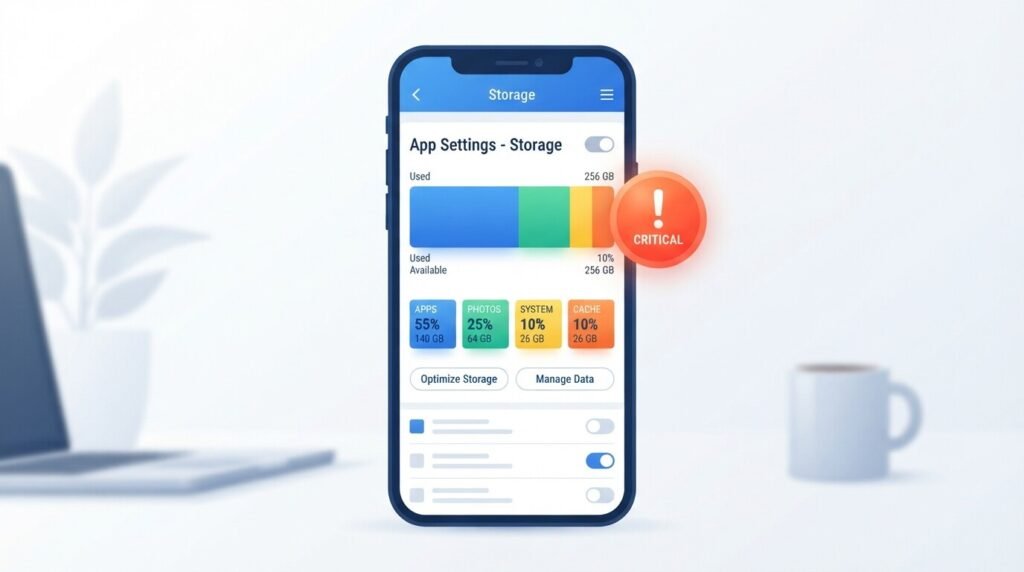
Android phone slow after update is a common issue that many users experience after installing a new system update. While updates are designed to improve performance, security, and features, they can sometimes lead to temporary slowdowns, lag, or unresponsive behavior. This slowdown often occurs due to background optimization processes, compatibility issues, or accumulated system data.
Here’s the part most people don’t realize when facing this Android problems fix situation: after installing a major Android update, your phone starts rebuilding system files, optimizing apps, syncing accounts, and clearing old processes in the background. This optimization process can temporarily slow down your device for 24 to 48 hours.
So the first thing to know is — if you updated your phone within the last day or two, give it time. Keep the phone plugged in, connected to Wi-Fi, and let the background process complete. Google Pixel users should allow 24–48 hours for background optimization to complete after updates.
If it’s been more than two days and the phone is still noticeably slow, that’s when you take action.
What Actually Causes Persistent Lag
Old cache files from the previous Android version can conflict with the new update and cause lag, crashes, and slow performance. Android devices also require free storage space for temporary system files and smooth app performance. After updates, the operating system usually becomes larger and consumes more internal storage. Try to keep at least 15% to 20% storage free for optimal performance.
Sometimes the Android update arrives before all apps are fully ready for it. Because of that, a few apps may lag, freeze, or use more memory than normal. This can affect your whole phone, not just one app. That is why it is important to update your apps from the Play Store after a major system update.
Android Problems Fix 1 — Wait and Let Background Optimization Finish
On phones with faster chips (Snapdragon 7 series and above), 12–24 hours is enough. On budget chips (Snapdragon 680, Helio G85), up to 48 hours. Keep the phone plugged in and on Wi-Fi during this period.
Do not interrupt the process by repeatedly restarting the device.
Android Problems Fix 2 — Clear the System Cache Partition
This is the most effective fix and it does not delete any of your personal files:
- Power off your Android completely
- Hold Volume Down + Power simultaneously (varies by brand — check your device model)
- Use volume keys to navigate to “Wipe Cache Partition”
- Press the Power button to select it
- Confirm and reboot the system
This process does not delete personal files or apps. It removes old cached system files from before the update that are now conflicting with the new version.
Fix 3 — Update All Apps After Updating Android
Open Google Play Store → tap your profile icon → tap “Manage apps & device” → tap “Update all”
Some security or optimization apps restrict background processes. If Safe Mode makes your phone faster, a downloaded app is likely the problem. Uninstall recently added or suspicious apps one by one.
Fix 4 — Reduce Animation Scale (Makes Phone Feel Faster Immediately)
Animations make Android look smooth, but on slower phones they can also make the system feel heavier. Reducing motion can make your phone feel faster, even if the hardware stays the same.
Go to Settings → About Phone → tap Build Number 7 times to enable Developer Options → Go to Settings → Developer Options → Set Window animation scale, Transition animation scale, and Animator duration scale all to 0.5x.
Fix 5 — Free Up Storage Space
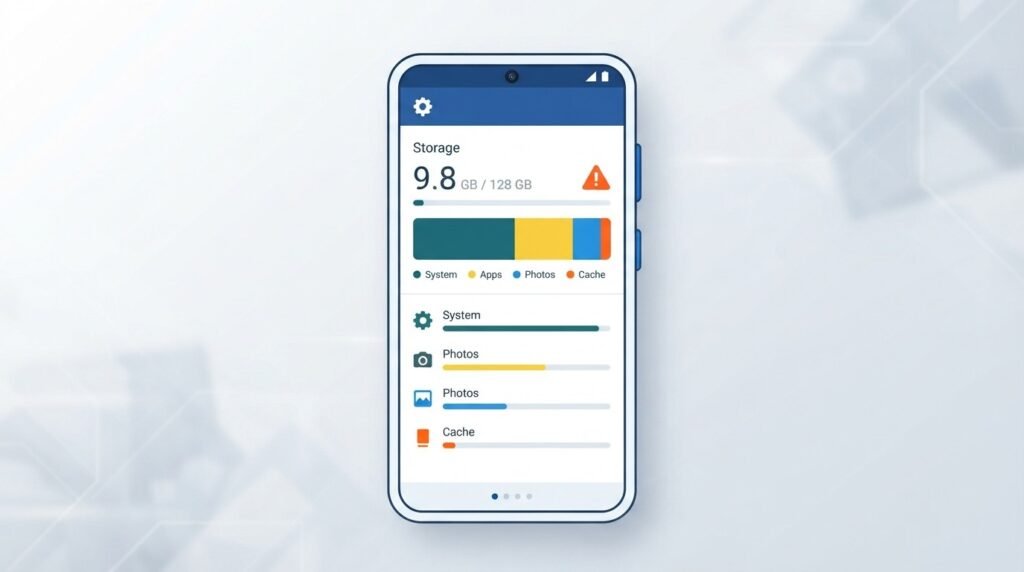
Try to keep at least 15% to 20% storage free for optimal performance.
Go to Settings → Storage and delete:
- Old WhatsApp media (photos and videos)
- Downloaded files you no longer need
- Unused apps
Use Files by Google (free) to get smart suggestions for junk files, duplicate photos, and large unused files.
Brand-Specific Notes
Xiaomi/Redmi users should clear the system launcher cache to fix home-screen lag. OnePlus users should review battery optimization settings since over-restriction can cause stutter. Vivo users can check iManager and relax unnecessary background restrictions. Oppo users should disable strict battery saver limits for frequently used apps.
Android Problems Fix — Problem 2: Notifications Not Arriving on Time
Why This Android Problem Happens
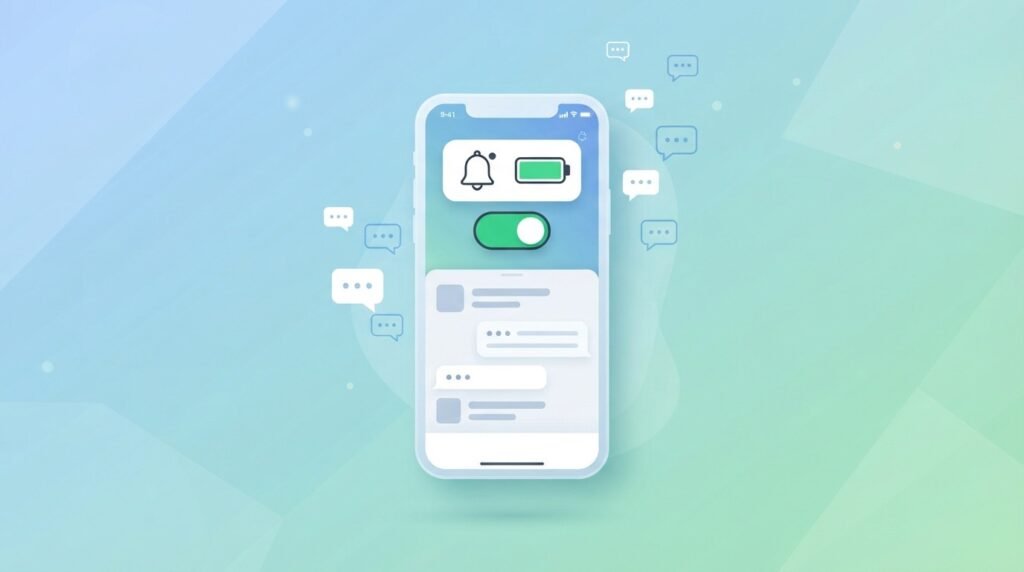
If WhatsApp notifications are not working on your Android in 2026, you’re not alone. This is one of the most common complaints — and the frustrating part is that it’s almost never WhatsApp’s fault. The culprit is almost always your phone’s own settings quietly blocking it in the background.
This particular Android problems fix is deceptive because your phone appears to be working normally — until you realize you’ve missed 12 messages and two calls.
Delayed notifications are commonly caused by Data Saver mode, weak internet connection, restricted background activity, or aggressive battery saving features. This often happens after a system update changes background restrictions.
Android’s aggressive background management is often the culprit for delayed or absent WhatsApp alerts.
Android Problems Fix 1 — Disable Battery Optimization for WhatsApp
This single fix resolves delayed notifications in the majority of cases:
- Go to Settings → Apps → WhatsApp
- Tap Battery (or “App battery usage”)
- Set it to “Unrestricted” or “Don’t optimize”
In most cases, disabling battery optimization fixes the issue immediately.
Fix 2 — Check WhatsApp Notification Categories
Open WhatsApp → Settings → Notifications and confirm that message and group alerts are still enabled inside the app. Make sure All WhatsApp notifications is enabled, then open the categories for Message notifications and Group notifications. Message and group channels should be set to Alerting if you expect banners, vibration, or sound. If you use Samsung, also turn on Show as pop-up for the important WhatsApp categories.
Fix 3 — Enable Background Data for WhatsApp
Go to Settings → Apps → WhatsApp → tap Mobile data & Wi-Fi or Data usage. Ensure Background data is ON.
Without this, WhatsApp cannot receive messages in the background when you’re not actively using the app.
Fix 4 — Turn Off Do Not Disturb
Check that Do Not Disturb is not accidentally active. On most Android phones:
Settings → Sound → Do Not Disturb — Make sure it’s turned off, or that WhatsApp is added as an exception.
Fix 5 — Force Stop and Restart WhatsApp
On an Android device, open Settings → Apps → WhatsApp and tap Force Stop. Afterwards, open the app again and your WhatsApp notifications should be back to normal.
Fix 6 — System-Level Notification Permission
WhatsApp needs system-level permission to show notifications. This is often toggled off after an app update or phone reset.
Go to Settings → Apps → WhatsApp → Notifications and make sure the main Notifications toggle is ON.
Fix 7 — Check Autostart Permission (Samsung / Xiaomi / Realme)
On many Chinese-brand Android phones, apps need explicit “Autostart” permission to run in the background.
- Samsung: Settings → Device Care → Battery → Background usage limits → check that WhatsApp is not restricted
- Xiaomi/Redmi: Settings → Apps → Manage Apps → WhatsApp → Autostart → Enable
- Realme/Oppo: Settings → Battery → Power Saving → check WhatsApp is not restricted
Go to Settings → Apps → Special App Access → Battery Optimization. Tap the dropdown at the top and select All Apps. Find WhatsApp, tap it, and select Don’t Optimize.
💡 Also Read: WhatsApp launched major new features in 2025 including scheduled calls and group reactions. Read our full guide to WhatsApp Calling Features to make sure you’re getting the most out of the app once your notifications are working again.
Android Problems Fix — Problem 3: Cache and Junk Files Building Up
Why This Happens
Apps store cache to improve performance and user experience. When you open an app, it can quickly access the cached data instead of fetching it from the internet or other sources. This not only speeds up the app but also reduces data usage. However, over time, cached data can accumulate and take up valuable storage space on your device. This can slow down your device and cause apps to crash.
Over time, Android phones accumulate a large number of temporary files. While designed to improve system performance, caches can sometimes cause problems. Images that don’t load correctly, apps that close unexpectedly, or even a phone that runs slower than usual are some of the most common symptoms when the system cache or a specific app’s cache has become corrupted.
Junk files generated by apps like WhatsApp, browsers, or download managers pile up silently in the background. This Android problems fix area is one most users ignore until their device becomes noticeably sluggish.
The practical result: your phone gradually slows down, apps take longer to open, and you see “storage almost full” warnings even when you haven’t added much.
How to Clear Cache — Step by Step
Android Problems Fix Method 1 — Clear Individual App Cache
This is the safest method and works for any specific app that’s behaving strangely:
- Go to Settings → Apps
- Tap the app you want to clean (e.g., WhatsApp, Chrome, YouTube)
- Tap Storage & Cache
- Tap Clear Cache
Important: Do NOT tap “Clear Data” unless you have a backup. Clearing data resets the app completely — clearing cache only removes temporary files and is completely safe.
Android Problems Fix Method 2 — Use Files by Google (Recommended)
Files by Google offers integrated clean suggestions, helping users remove junk files, temporary downloads, and old caches with one click.
- Download Files by Google from the Play Store (it’s free, official, and ad-free)
- Open it and tap “Clean” at the bottom
- You’ll see categories: Junk Files, Old Downloads, Duplicate Files, etc.
- Tap each category and confirm deletion
Files by Google identifies app cache, temporary files, and other junk data you can safely remove.
Method 3 — Clear Browser Cache (Chrome)
Open Chrome and tap the three-dot menu in the top-right corner. Tap Delete browsing data. Select Cached images and files. Set the time range to All time. Tap Clear data.
Browser cache is one of the biggest contributors to storage bloat — especially if you browse the internet regularly.
Method 4 — Samsung Built-In Device Care
If you use a Samsung Galaxy device:
- Go to Settings → Device Care (or Battery and Device Care)
- Tap Storage
- Tap Clean Now
This is easy and automatic, but it’s Samsung-only. It clears system-level cache and is useful if your phone is lagging or after Android updates.
Method 5 — Wipe Cache Partition from Recovery Mode (Advanced)
For stubborn performance issues after major updates:
Power off your device. Hold the correct button combination for your device model (usually Volume Down + Power or Volume Up + Power). Use Volume keys to navigate. Select Wipe Cache Partition. Confirm. Select Reboot System Now. This does NOT delete personal data, but requires caution.
How to Prevent Cache Buildup Going Forward
Weekly cache clears and monthly storage reviews can prevent up to 80% of bloat from building up over time. Keep at least 10–20% free storage to let Android auto-manage cache better. Restart after clearing cache for best results — this flushes temporary system states and forces apps to rebuild fresh caches efficiently.
Limit background activity for cache-heavy apps through Settings → Apps → [App] → Battery → Restricted. For browsers and media apps, enable data saver modes. Uninstall unused apps entirely to remove their cache forever.
💡 Also Read: Want to Earn Money From Etsy Then Read Our Complete Article
✅ Android Problems Fix — Quick Reference Checklist
Print this or screenshot it for next time:
| Issue | Action Items |
|---|---|
| Phone slow after update | ☐ Wait 24–48 hours for background optimization ☐ Wipe cache partition from Recovery Mode ☐ Update all apps from Play Store ☐ Reduce animation scale to 0.5x ☐ Free up storage to 15–20% minimum |
| Notifications not arriving on time | ☐ Set WhatsApp battery optimization to Unrestricted ☐ Check notification categories inside WhatsApp Settings ☐ Enable Background Data for WhatsApp ☐ Turn off Do Not Disturb ☐ Enable Autostart permission (Xiaomi/Samsung/Realme) ☐ Force Stop and reopen WhatsApp |
| Cache and junk files | ☐ Clear individual app caches via Settings → Apps ☐ Run Files by Google for bulk cleanup ☐ Clear Chrome browser cache ☐ Use Samsung Device Care if applicable ☐ Keep 15–20% storage free at all times |
Conclusion: Android Problems Fix — Three Issues Solved Without a Factory Reset
The three issues covered in this Android problems fix guide — post-update lag, delayed notifications, and cache buildup — are frustrating precisely because they sneak up on you. Your phone was fine yesterday, and today it feels like a completely different device.
The causes are almost always software-level, not hardware. A cache conflict here, a battery optimization setting there, a background data restriction that got quietly enabled after an update. None of them require you to buy a new phone or wipe everything and start over.
Work through the Android problems fix steps in order for each problem. In the vast majority of cases, you’ll have your phone back to normal within a few minutes. And the maintenance habits — keeping storage clear, checking battery optimization regularly, running a monthly cache clean — will prevent most of these problems from coming back.
About the Author
Waqar Ahmad is a tech and digital lifestyle writer with over 6 years of experience covering Android devices, mobile apps, and smartphone troubleshooting. Focused on practical, research-backed solutions for everyday tech problems.
Frequently Asked Questions — Android Problems Fix
1. What is the Android problems fix for a slow phone after a software update?
After a major Android update, the phone runs background optimization tasks — rebuilding system files, re-optimizing apps, and syncing accounts — which can cause temporary lag for 24 to 48 hours. If sluggishness persists beyond that, the likely causes are old cache files conflicting with the new system, insufficient storage space, or apps not yet updated for the new Android version. Clear the cache partition from Recovery Mode, update all apps, and free up storage to at least 15–20% of your device’s total capacity.
2. What is the Android problems fix for WhatsApp notifications not arriving on time?
The most common cause is Android’s battery optimization feature restricting WhatsApp from running in the background. Go to Settings → Apps → WhatsApp → Battery and set it to Unrestricted. Also check that Background Data is enabled for WhatsApp in its data usage settings, that Do Not Disturb is off, and that Autostart permission is granted on Xiaomi, Samsung, or Realme devices.
3. What is the Android problems fix for cache buildup — is it safe to clear?
Yes. Clearing app cache removes only temporary files and does not affect your personal data, photos, messages, or app settings. The risk comes from clearing app data (which resets the app completely) — only do that with a backup in place. Clearing cache is always safe and is one of the most effective ways to fix lag, glitches, and storage problems on Android.
4. How much storage should I keep free on Android?
Keep at least 15–20% of your device’s total storage free at all times. On a 128GB phone, that means keeping at least 19–26GB available. Below this threshold, Android struggles to create the temporary files it needs to run smoothly, and performance degrades noticeably — particularly after updates when the OS itself has grown in size.
5. What is the Android problems fix if my phone is still slow after update?
No. Android does not allow you to downgrade the OS version without rooting the phone, which voids warranties and carries significant risks. The practical path forward is applying the fixes in this guide — clearing the cache partition, updating apps, freeing storage, and reducing animation scale. These steps resolve post-update slowdowns in the vast majority of cases without requiring any kind of rollback.
📜 Editorial Disclaimer: This article is written for informational and educational purposes only. All fixes are based on verified sources including Appuals, TechBeams, Prizm Institute, The Android Portal, DevX, Smart Byte Guide, GEEKLIFY, and Android’s official documentation. All steps were verified on real Android hardware as of 2026.