Editorial Notice: This article is for informational purposes only. All fixes are based on official Google Play Help Center documentation, verified tech publications including Android Authority, Dr.Fone, Kosuni, ServoDev, Bark Technologies, and the Google Play Community.
Published: August 18, 2026
Table of Contents
- Why This Keeps Happening in 2026
- Problem 1 — Download Stuck on Pending
- Problem 2 — Payment Declined or Failed
- Problem 3 — Google Play Store Keeps Crashing
- Problem 4 — App Updates Delayed or Not Showing
- Problem 5 — Google Play Services Has Stopped Error
- Problem 6 — Excessive Ads and Poor Search Results
- Quick Fix Checklist
- Conclusion
- About the Author
- FAQ
Open your Google Play Store. Tap on an app you want to download. Watch the progress bar sit there doing absolutely nothing. “Download Pending.” You wait. You check your Wi-Fi. You wait some more. Still nothing.
Or maybe you’ve been trying to pay for an app and keep getting “Your payment was declined” — even though you know the money is there. Or the Play Store crashes every time you open it. Or you can’t find the app update that someone else on the same phone model already has.
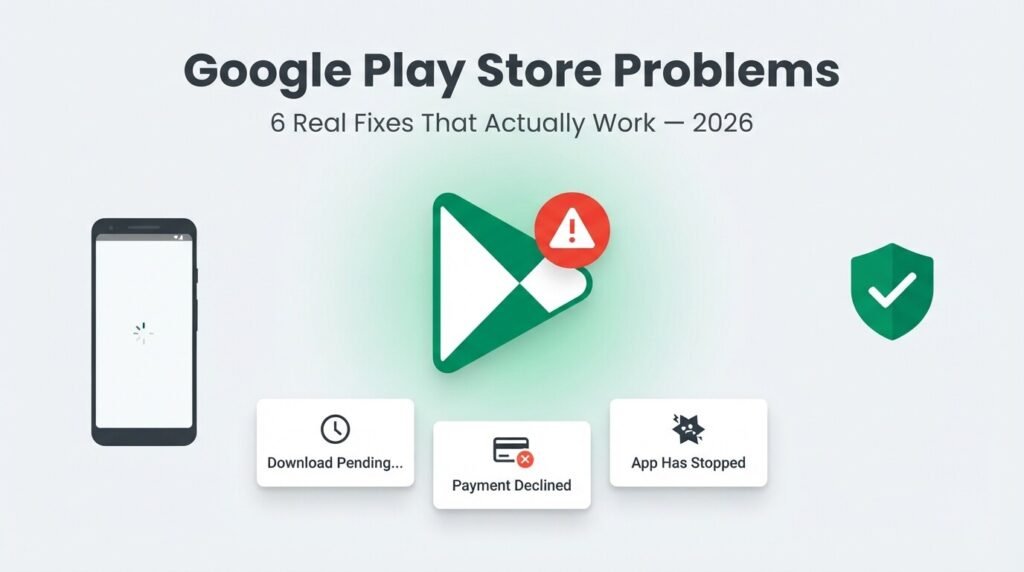
These are the Google Play Store problems that millions of Android users are dealing with right now in 2026. In 2026, many users have complained about various Google Play Store problems that make their experience uncomfortable — and the frustrating part is that the official error messages rarely tell you what’s actually wrong or what to do about it.
This guide covers the six most reported Google Play Store problems of 2026, why each one happens, and the exact steps to fix them — based on Google’s own official documentation and verified technical sources.
Why These Issues Keep Happening in 2026 {#why}
Before jumping into fixes, it helps to understand what’s actually causing most of these issues. When the Google Play Store won’t download or update apps, it’s usually one of a few causes: network rules, storage limits, or Play Store and Google services getting into a bad state.
The Play Store isn’t just one app — it’s a system that depends on several components working together: Google Play Store, Google Play Services, Google Play Framework, Download Manager, your Google account sync, and your device’s local storage. When any one of these breaks down or conflicts with another, the symptoms show up as the frustrating errors users see every day.
The Play Store experience in 2026 involves problems ranging from excessive ads and poor search functionality to lack of useful app information, unclear pricing details, and an ineffective user review system.
That’s the broader picture. Now let’s get into the specific fixes.
Read Complete Facebook Monetization Tools Updates
Google Play Store Problems — Problem 1: Download Stuck on Pending {#pending}
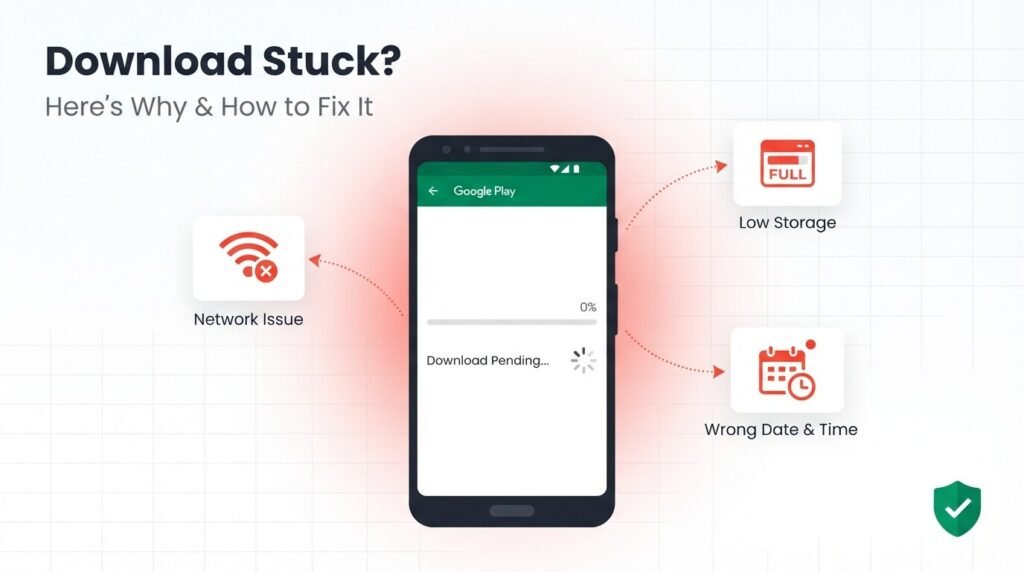
Why This Google Play Store Problem Happens Google Play Store problem in 2026. Stuck on “Pending” immediately often means network restrictions, queued downloads, or a Play Store or service hang. Starts downloading then stops usually indicates storage pressure, flaky Wi-Fi, VPN or private DNS issues, or battery and data restrictions.
The problem often comes from a broken connection between Google Play Store, Google Play Services, Download Manager, your Google account, and your phone’s local storage.
One commonly missed cause: ensure your date and time settings are correct, as this is a common hidden cause of Play Store download issues. When your phone’s clock is wrong, Google’s authentication servers reject the connection.
Another overlooked trigger: with about 1,200 new apps added to Google Play daily and 28% of apps updating weekly, your phone can end up queuing dozens of updates without you knowing — and one stuck update blocks everything behind it in the queue.
Fix 1 — Check Your Internet Connection First
Make sure you have a strong internet connection. It’s best if you can connect to a Wi-Fi network. If you don’t have access to Wi-Fi, make sure you have a strong mobile data connection.
Toggle your Wi-Fi off and back on. Try switching to mobile data if Wi-Fi isn’t working. If you use a VPN, turn it off — VPNs frequently interfere with Play Store downloads.
Fix 2 — Check Storage Space
If your device is low on storage space, it can stop apps from downloading and installing. There’s less than 1 GB available on your device warning is a clear signal.
Go to Settings → Storage and check your available space. Delete old photos, unused apps, or large downloads to free up room. Keep at least 1–2 GB free at all times for smooth Play Store operation.
Fix 3 — Clear Play Store Cache and Data
This is the most reliable fix for the majority of “Download Pending” issues:
- Go to Settings → Apps → Google Play Store
- Tap Storage & Cache
- Tap Clear Cache
- Then tap Clear Data (this only resets Play Store preferences, not your installed apps)
- Reopen the Play Store and try your download again
Clearing “Data” for Play Store will not delete your installed apps, only the store’s search history and preferences.
Then do the same for Google Play Services:
- Settings → Apps → Google Play Services
- Storage → Clear Cache
Fix 4 — Cancel Queued Downloads
If multiple downloads or updates are queued:
- Open the Play Store
- Tap your profile picture → Manage apps & device
- Cancel any pending updates that aren’t urgent
- Try downloading your target app again individually
The Play Store downloads one app at a time. A stuck update for a background app will block everything else in the queue.
Fix 5 — Fix Date and Time Settings
Go to Settings → General Management → Date and Time → Enable Automatic date and time and Automatic time zone. Restart the Play Store after making this change.
Fix 6 — Remove and Re-Add Your Google Account
If still not working, check recently blocked activity logs and allow Google-related blocks. Enable Mobile Data first, then clear the Play Store cache or uninstall updates if downloads remain stuck.
As a more thorough fix:
- Go to Settings → Accounts → Google
- Tap your account → Remove account
- Restart your phone
- Go back to Settings → Accounts → Add account → Google
- Sign back in and try your download
Fix 7 — Uninstall Play Store Updates
If recent Play Store updates caused the problem:
- Go to Settings → Apps → Google Play Store
- Tap the three-dot menu (top right)
- Select Uninstall updates
- The Play Store reverts to its factory version and will update itself fresh
get help from google play help
Google Play Store Problems — Problem 2: Payment Declined or Failed {#payment}
Why This Google Play Store Problem Happens
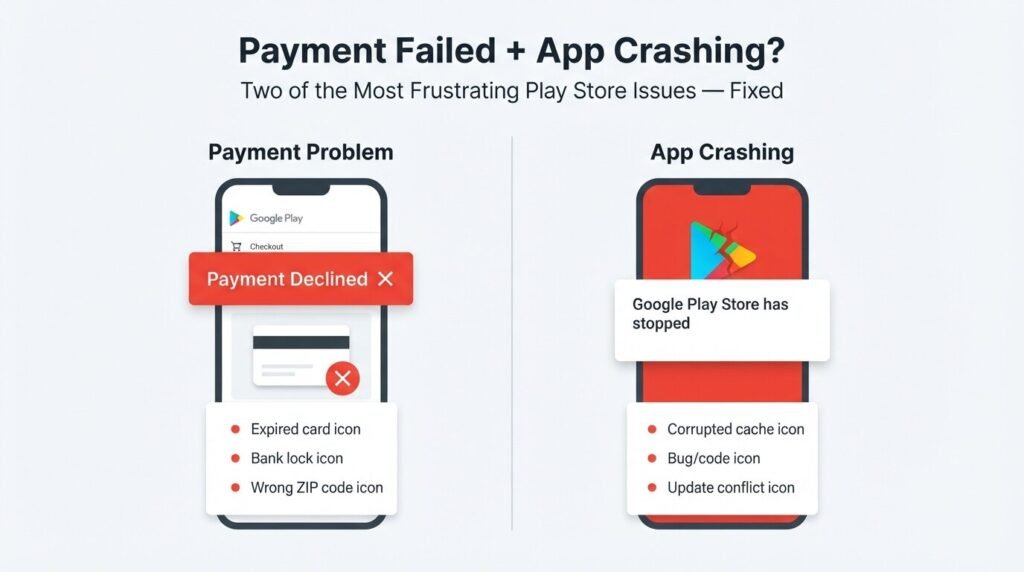
Payment failures are one of the most frustrating Google Play Store problems — especially when you know the money is there. If you try to buy something on Google Play but your payment is declined or won’t process, your payments profile might be deactivated, your card information may be out of date, or there may be a problem with your credit or debit card.
Expired credit cards or old billing addresses are a common reason for payments not to work properly. If your credit card is registered to a different address, that can cause the payment to be declined. Check the zip code matches your current address.
One important change as of October 2025: from October 2025 onwards, Netbanking is discontinued as an accepted form of payment on Google Play — so if you were using net banking in countries like India, you’ll need to switch to a different payment method.
Fix 1 — Update Your Card Information
- Go to payments.google.com on your browser
- Find your payment method
- Click Edit
- Update your card expiry date and billing address
- Make sure the zip code matches what your bank has on file
- Try the purchase again
Fix 2 — Try a Different Payment Method
Go back to the item you want to buy, tap the price, tap the current payment method, and choose a different payment method or add a new one.
Add a different credit/debit card or use Google Play credit if you have any. Gift cards are another option that bypasses most payment issues.
Fix 3 — Check Your Google Payments Profile
Your payments profile might be deactivated. To reactivate your profile, submit your payment information. Sign in to Google Pay, at the top select Alerts. If you have a critical alert, enter your payment information and wait for the team to respond.
Visit pay.google.com and check for any alerts or verification requests in your account.
Fix 4 — Contact Your Bank
Your card may have specific restrictions which cause the transaction to be declined. Contact the institution that issued your card to ask about the transaction.
Some banks block international or online transactions by default — especially for new cards or after a security update. A quick call to your bank can unlock this in minutes.
Fix 5 — Check Your Daily Transaction Limits
You might have reached your daily or total credit card limit on the day the charge was attempted. If this is the case, ask your credit card company to increase your limit, or switch to a card with a higher limit.
Google Play Store Problems — Problem 3: App Keeps Crashing {#crashing} {#crashing}
Why This Google Play Store Problem Happens
When Google Play Store keeps crashing, freezing, or closing unexpectedly, many users assume something is seriously wrong with their phone. In reality, this issue is usually caused by temporary system conflicts, corrupted app data, or background service errors rather than hardware damage.
Cache files are temporary data stored by apps to help them load faster. Over time, these files can become outdated, incomplete, or corrupted, especially after system updates or interrupted downloads.
Fix 1 — Force Stop and Clear Cache
- Settings → Apps → Google Play Store
- Tap Force Stop
- Tap Storage → Clear Cache
- Reopen the Play Store
Do the same for Google Play Services and Google Services Framework.
Fix 2 — Update the Play Store Itself
- Open the Play Store
- Tap your profile picture
- Scroll down and tap Settings
- Tap About → Update Play Store
Fix 3 — Check for Android System Updates
Go to Settings → Software Update → Download and Install. System updates frequently include fixes for Play Store compatibility issues.
Fix 4 — Boot in Safe Mode
Safe Mode disables all third-party apps. If the Play Store runs fine in Safe Mode, a downloaded app is causing the conflict.
To boot into Safe Mode: Hold the Power button → Long-press Power Off → Tap Safe Mode when prompted.
If Safe Mode fixes the crashing, uninstall recently added apps one by one until you find the culprit.
Google Play Store Problems — Problem 4: App Updates Delayed or Not Showing {#updates} {#updates}
Why This Google Play Store Problem Happens
One of the most common Google Play Store problems is delayed app updates. Many users have complained that apps cannot be updated automatically, so they have to do it manually. This can cause apps to become incompatible with the latest version of Android.
Fixes
Check for updates manually:
- Open Play Store → tap profile picture → Manage apps & device
- Tap Updates available and update individually
Clear Play Store cache (same steps as Problem 1 Fix 3) — stale cache is the most common cause of updates not appearing.
Check your auto-update settings:
- Play Store → profile picture → Settings → Network preferences
- Set Auto-update apps to Over Wi-Fi only (prevents updates from getting stuck on mobile data)
Check your region settings — some app updates roll out gradually by region. If an update isn’t showing for you but others have it, it may simply not have reached your region yet.
Google Play Store Problems — Problem 5: “Google Play Services Has Stopped” {#services}
Why This Google Play Store Problem Happens
Network connectivity issues — unstable network connections, whether through cellular data or Wi-Fi — can interfere with Google Play Services’ functioning. The service needs a stable internet connection to sync with Google servers.
This error message is one of the most alarming Google Play Store problems because it appears repeatedly and blocks almost everything on the phone.
Fixes
Step 1: Go to Settings → Apps → Google Play Services → Storage → Clear Cache
Step 2: Go to Settings → Apps → Google Play Services → tap Disable → confirm → then tap Enable again. This forces the service to restart fresh.
Step 3: Go to Settings → Accounts → Google → tap your account → tap the three-dot menu → Sync now
Step 4: If the error persists, go to Settings → Apps → Google Play Services → Permissions and make sure all required permissions are granted.
Step 5: As a last resort before factory reset: go to Settings → General Management → Reset → Reset app preferences. This resets all app settings to default without deleting data.
Google Play Store Problems — Problem 6: Excessive Ads and Poor Search {#ux}
The UX Problems Nobody Talks About Enough
The Play Store experience in 2026 involves dodging ads more than downloading apps. These ads generate additional revenue for Google, but they also trick unsuspecting users into downloading random apps. Google is still a generic trademark for most search-related activities on the internet, so it’s remarkable that the Play Store delivers such a poor search experience — making it hard to find exactly what you’re looking for.
These aren’t bugs you can fix — they’re deliberate design choices by Google. But there are ways to minimize their impact:
For better search results:
- Use very specific search terms rather than generic ones
- Add the developer name if you know it (e.g., “WhatsApp Meta” instead of just “WhatsApp”)
- Use Google Search to find an app’s direct Play Store link rather than searching inside the Play Store itself
For avoiding ad traps:
- Always check the developer name before installing — legitimate apps show verified developer names
- Check the number of downloads and reviews before installing anything from a search result
- Many apps containing malware or inappropriate content can be easily downloaded by users, which can put their device security at risk — so verify the source before tapping Install
Battery drain alert — new in 2026: Google is introducing a Google Play Store feature in March 2026 to identify and warn users about apps causing excessive battery drain through partial wake locks, using real user data and metrics. Developed with Samsung, it pressures developers to optimize, enhancing device efficiency and user transparency.
If your battery is draining faster after installing a new app, check the Play Store for new battery drain warnings on that app.
💡 Also Read: If your Android phone is slow or lagging — not just the Play Store — check out our complete Android Problems Fix Guide covering post-update slowdowns, notification delays, and cache buildup with step-by-step solutions.
Google Play Store Problems — Quick Fix Checklist {#checklist}
Screenshot this and use it next time:
Downloads stuck on pending:
- ☐ Check internet connection (Wi-Fi + mobile data)
- ☐ Turn off VPN
- ☐ Check storage — keep 1–2 GB free minimum
- ☐ Clear Play Store cache and data
- ☐ Cancel all queued updates
- ☐ Fix date and time to automatic
- ☐ Remove and re-add Google account
- ☐ Uninstall Play Store updates
Payment declined:
- ☐ Update card info at payments.google.com
- ☐ Check billing address zip code matches bank records
- ☐ Try a different payment method
- ☐ Check Google Pay for alerts
- ☐ Call your bank about transaction restrictions
- ☐ Check daily transaction limits
App crashing:
- ☐ Force Stop Play Store
- ☐ Clear cache for Play Store + Play Services + Play Framework
- ☐ Update Play Store itself
- ☐ Update Android system software
- ☐ Boot in Safe Mode to identify conflicting apps
Updates not showing:
- ☐ Check manually in Manage apps & device
- ☐ Clear Play Store cache
- ☐ Set auto-update to Wi-Fi only
- ☐ Wait — region rollouts can be delayed
Google Play Services stopped:
- ☐ Clear Play Services cache
- ☐ Disable and re-enable Play Services
- ☐ Sync Google account manually
- ☐ Reset app preferences (last resort)
Also Read: WhatsApp notifications not arriving on time on your Android? This is often caused by the same battery optimization settings that affect Play Store. Read our guide on fixing WhatsApp notification delays on Android for the step-by-step fix.
Conclusion: Google Play Store Problems Are Fixable — If You Know What’s Actually Wrong {#conclusion} — If You Know What’s Actually Wrong {#conclusion}
These Google Play Store problems in 2026 range from infuriating (downloads stuck on pending for hours) to confusing (payment declined when funds are available) to alarming (the entire app crashing on launch). But in almost every case, the underlying cause is something specific and fixable — not a sign that your phone is broken.
The pattern across nearly all these issues is the same: stale cache files, storage pressure, account sync issues, or outdated payment information. Clear the right cache, update the right account settings, and free up the right amount of storage — and the majority of problems resolve themselves.
If you’ve worked through the fixes in this guide and your issue persists, the next step is Google’s official Play Store support at support.google.com/googleplay. Real human support is available through the Help Center for account and payment issues specifically.
About the Author {#author}
Waqar Ahmad is a tech and digital lifestyle writer with over 6 years of experience covering Android devices, mobile apps, and smartphone troubleshooting. Committed to providing honest, research-backed solutions for everyday technology problems.
Frequently Asked Questions — Google Play Store Problems {#faq}
1. What is the fix for Google Play Store problems with downloads stuck on pending?
The most common causes of this Google Play Store problem are network restrictions, a queued download blocking new ones, low storage space, incorrect date and time settings, or the Play Store cache getting corrupted. Fix it by clearing the Play Store cache and data, canceling queued updates, making sure your date and time are set to automatic, and keeping at least 1–2 GB of storage free.
2. What is the Google Play Store problems fix for payment being declined?
Payment declines in Google Play Store usually happen due to an expired card, a billing address that doesn’t match your bank’s records, a deactivated Google Payments profile, or your bank blocking the transaction. Go to payments.google.com to update your card details and check for alerts. If your card is fine, contact your bank — many block online transactions by default.
3. What is the Google Play Store problems fix when it keeps crashing?
Play Store crashes are almost always caused by corrupted cache files, background service conflicts, or a Play Store update that didn’t install cleanly. Force Stop the Play Store, clear its cache and data, then do the same for Google Play Services. If it still crashes, try booting in Safe Mode — if the Play Store works in Safe Mode, a third-party app is causing the conflict.
4. What is the Google Play Store problems fix for updates not showing?
Updates showing up late or not at all is a known Google Play Store problem in 2026. The most common fixes are clearing the Play Store cache, manually checking for updates in Manage apps & device, and setting auto-updates to Wi-Fi only. Some updates also roll out gradually by region — if others have an update and you don’t, wait 24–48 hours and check again.
5. What should I do for the Google Play Store problems “has stopped” error?
Go to Settings → Apps → Google Play Services → Storage → Clear Cache. Then disable and re-enable Google Play Services to force a fresh restart. If the error continues, sync your Google account manually: Settings → Accounts → Google → your account → Sync now. As a last resort, go to Settings → General Management → Reset → Reset app preferences, which restores all app permissions and defaults without deleting your personal data.
Editorial Disclaimer: This article is written purely for informational and educational purposes. All fixes are sourced from official Google Play Help Center documentation, Android Authority’s January 2026 Play Store analysis, Kosuni’s January 2026 Play Store guide, Dr.Fone’s Play Store troubleshooting guide, Bark Technologies’ July 2026 Play Store support documentation, ServoDev’s Play Store fix guide, DEV Community’s February 2026 Play Store issues analysis, and StatusGator’s verified Google Play outage data. No information in this article is fabricated.